

Everyone with a Platform seat can change their own account.
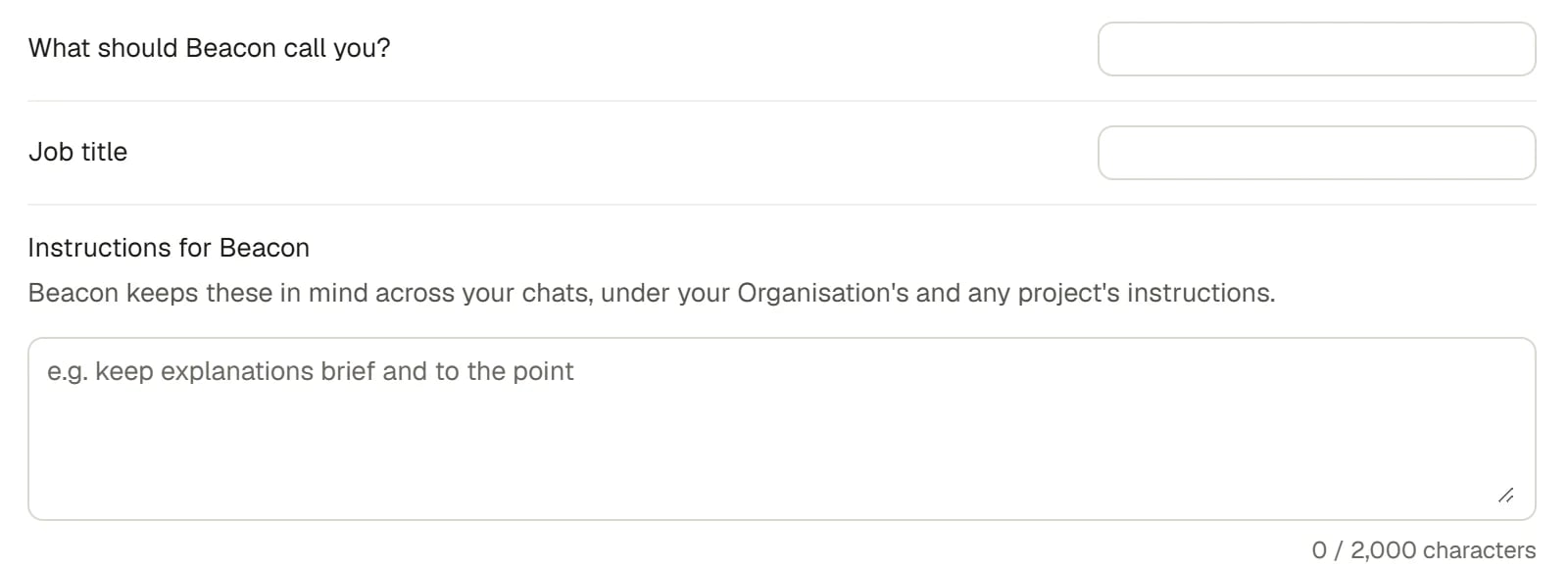
Your Beacon preferences
Open your account settings
1
Open the account menu
Choose your name at the foot of the sidebar.
2
Choose Account settings
Settings opens over the page you are on. View profile opens the same section. You can also choose Settings in the sidebar and then Account under Preferences. See Finding your way around.
Change your profile photo
Hover over your photo in Profile photo. Choose it to pick a file. If you already have a photo, you are offered Upload and Remove. The photo can be a PNG, JPEG or WebP file of up to 5 MB. Until you add one, Saphion shows your initials on a colour of its own choosing. Every place that shows your face changes at once.Change your name
1
Choose Edit beside Full name
The row also shows your sign-in email address and mobile number.
2
Change your names
The Edit profile window has First name, Last name and Mobile. It also shows your Email, which is your sign-in address and cannot be changed here, and your Access, which your Organisation’s Admins set.
3
Choose Save
Your name is how people in your Organisation see you.
Tell Beacon about you
Three rows below your name belong to Beacon. Each saves when you leave the box, and shows the earlier value again if Saphion cannot save the change.If your instructions run over the allowance, the box says so and they are not saved until you shorten them. See Instructions for how personal, Project and Organisation instructions combine.
Change your password
Choose Change password. Saphion emails a code to your sign-in address, you enter it, choose a new password and are signed in with it. This is the same journey as a forgotten password. See Sign in.Sign out of all devices
Choose Sign out of all devices to end every session you hold, including phones and other browsers, and then sign out of the browser you are using. Use it if you have lost a device or signed in on a computer that is not yours. If your other devices are signed out but this browser cannot sign out, the row says so. Choose Sign out in the account menu.Leave an Organisation
1
Choose Leave Organisation
The row is named after your Organisation, for example “Leave Saphion Limited”, and sits in its own section at the foot of the account settings.
2
Read what is handed over
Leave this Organisation? lists what you hold: open Actions, teams you own, Projects you lead, boards and dashboards of your own and Permission holdings. All of it goes to an owner of your team, who is told.
3
Confirm
Choose Hand over and leave, or Leave if you hold nothing. Saphion then opens the app for whichever Organisation you still belong to.
Copy your Organisation ID
Organisation ID shows the identifier of the Organisation you are working in. Choose Copy when Support or an assistant asks for it. It is not secret, and it is not a password.How it works
- Only you change your own details. An Admin can deactivate a person, but nobody else can edit your name or password.
FAQ
Why can't I change my email address?
Why can't I change my email address?
Your email address is your sign-in identity, so Edit profile shows it but does not change it. Ask your Admin to invite the new address.
Who sees my profile photo and name?
Who sees my profile photo and name?
People in the Organisation you are working in. Your name is how colleagues see you, and your photo replaces your initials wherever your face is shown.
Does Sign out of all devices affect other people?
Does Sign out of all devices affect other people?
No. It ends only your own sessions.
Will I lose my work if I leave?
Will I lose my work if I leave?
No. What you hold is handed to an owner of your team, and your name stays on the work you did. See Bin and restore for what happens when work is deleted instead.
Related
- Sign in: Invitations, passwords and switching Organisation.
- Instructions: How personal, Project and Organisation instructions combine.
- Invite and manage people: Access, seats and deactivating people.
- Finding your way around: The sidebar, search and the Settings window.