

Anyone who can open a board can see its fields, and Managers of the board change them.
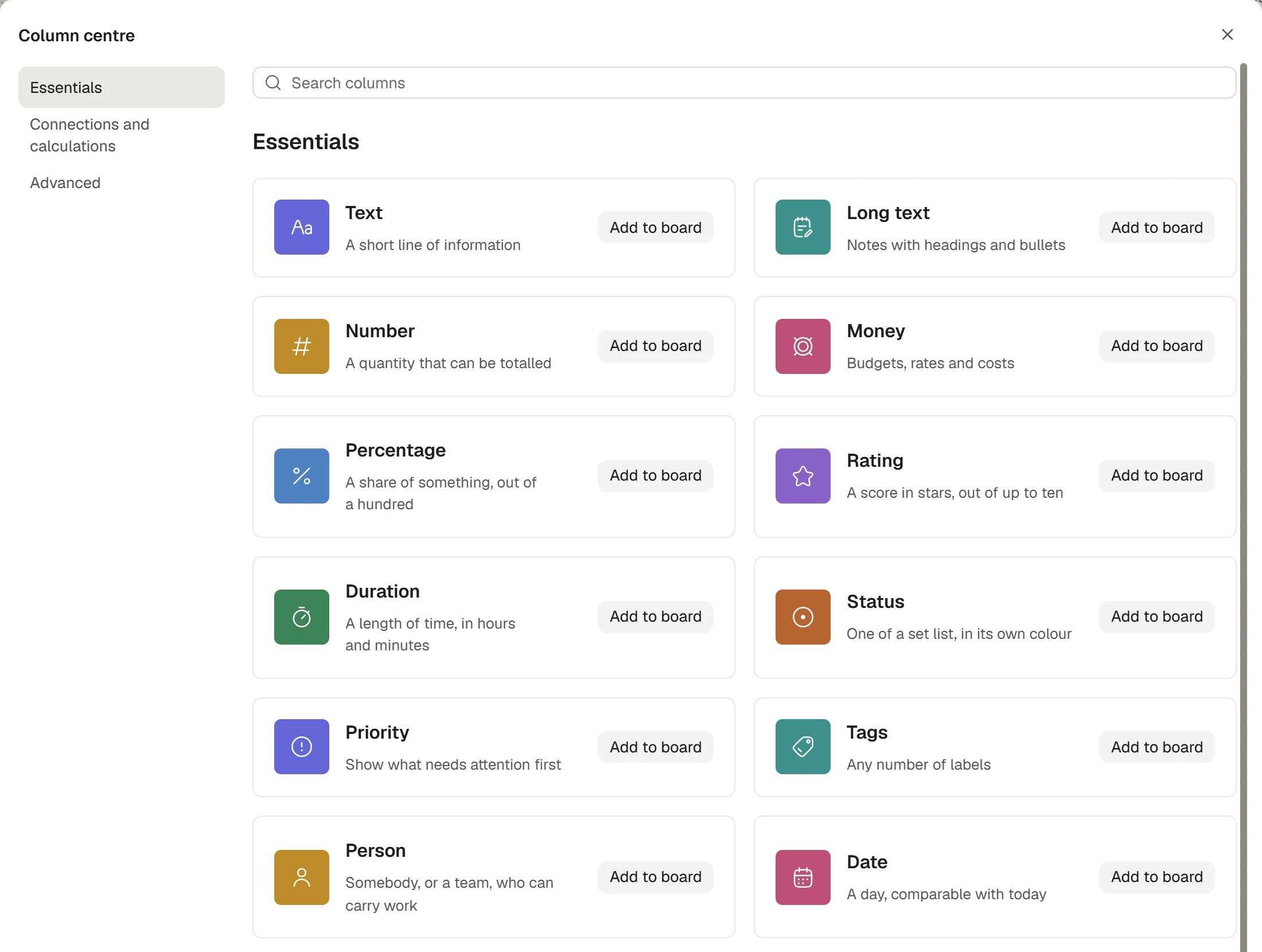
The Column centre
Add a field
1
Open the column menu
Open the menu of any column and choose Add column to the right. A short list of common types appears. Choose one to add it straight away, or choose More columns to see them all.
2
Choose a type in the Column centre
The Column centre groups types as Essentials, Connections and calculations and Advanced. Search with Search columns, or pick a category. Each card says what the type is for. Choose Add to board on a card.
3
Set it up if it needs it
A type that means nothing until it is set up opens its settings first. A Status or Tags field needs at least one choice. A Link to record, Mirror, Rollup or Formula needs its source or expression. The dialog is titled “New field” with the subtitle “Set it up, then add it to the board”. Choose Add field when it is ready.
4
Name it
A field you add straight away opens its settings with the name ready to type over. A new field takes its type’s name, numbered if the board already has one, such as “Status 2”.
Field types
A Link, an Email and a Phone value open with a click wherever they appear. A Mirror, Rollup and Formula are worked out for you, so nobody types into them. If a field is worked out from another, Saphion tells you which field the value comes from.
Change a field
Open the column menu and choose Settings.
Other acts in the column menu:
- Rename the field.
- Duplicate column as Column only, or Column and values.
- Change column type. Saphion lists the types this column can become without losing what it means, and asks you to confirm with Change type. A column with no compatible type says “No compatible types”.
Delete a field
Open the column menu and choose Delete field. The field moves to the Bin with its values and Saphion offers Undo straight away. An Admin, or the person who deleted it, can restore it later. See Bin and restore.Hide a field without deleting it
Hide column in the column menu, or Columns in the toolbar, hides a field in your own view only. The field and its values stay on every record and it still appears in the record panel. Fields with no value fold behind Show N more fields in the panel. See Boards, tables and views.Groups and sections
Rows can be arranged in groups.- Group in the toolbar groups the rows by any status, person, date or other groupable field, with an optional second level. Each heading shows the count and a total.
- Sections are named groups a board keeps, in an order the board gives them. A board with sections shows each section as a group with its count, sorted within each. Drag a row from one section to another to move it. Choose Group > Section to show or stop showing them.
Shape a board’s sections
On a board whose table is grouped by its sections, the people who can change how the board is built shape the sections in the table itself.- Rename, move or remove a section. Choose the ⋯ on a section’s heading, then Rename, Move up, Move down or Remove section. Rename lets you type the new name where the old one stands.
- Add a section. Choose New section at the foot of the table, type its name and press Enter.
- A section with records in it stays. Saphion says how many records it holds. Move them to another section first, then remove it.
How it works
- Who changes fields. Adding, changing and deleting fields on a board needs Manager access to that board. Fields that belong to a company-wide kind of record, such as Actions, Contacts and Companies, are configured by Organisation Admins. Everyone who can open a board can see its fields, subject to any restriction on the field.
- A field belongs to the kind of record, not to one view. Adding, renaming or hiding in a view changes only that view. Adding or deleting a field changes the board for everyone who can open it.
- Some fields are Saphion’s. A field Saphion needs, such as an Action’s status or a Project’s lead, cannot be deleted. Its name, description and choices stay yours to change where the menu offers them. A field a product or a connected system keeps says who manages it.
- Access follows the field. A field you restrict is hidden or read-only for everyone without the role you chose.
Ask Beacon
- “Add a Budget field in pounds to the Site visits board.”
- “Add a Priority field with Critical, High, Medium and Low.”
FAQ
Why is Add column to the right greyed out?
Why is Add column to the right greyed out?
You do not have Manager access to the board, or the board is one Saphion keeps. Hover over it to read why.
Can I change a field's type after I have added it?
Can I change a field's type after I have added it?
Yes, where the new type keeps the meaning. Use Change column type. Saphion shows you the types that work and asks you to confirm.
What happens to my data if I delete a field?
What happens to my data if I delete a field?
The field and its values move to the Bin. Restoring the field brings the values back. Permanently deleting it from the Bin removes them.
How do I stop a field showing for some people?
How do I stop a field showing for some people?
Open the field’s menu, choose Settings > Restrict who can see, and choose the roles.
Related
- Boards, tables and views: Filter, sort, group and save views of a board.
- Import and export: Map a spreadsheet’s columns to your fields.
- Record panel and attachments: See the fields of one record.
- Teams and Permissions: Who can configure what.