

Anyone with Manager access to a Project, or who owns an item, can share it.
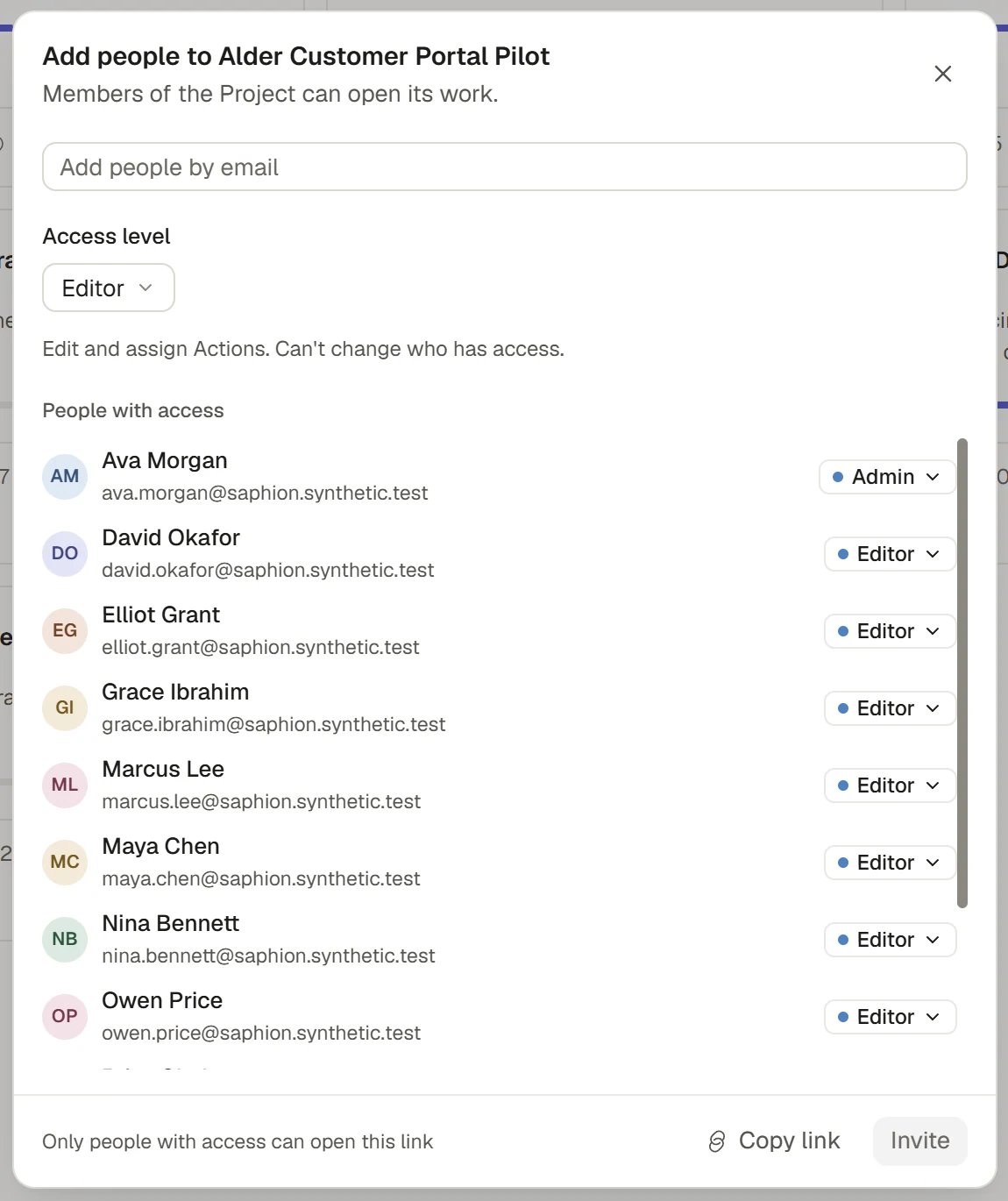
Project access
Three separate checks
When you cannot see or change something, one of three things decides it, and they are checked separately.
A person who cannot see something may be missing any one of the three.
Share a Project
1
Open Share
Choose the faces at the top right of the Project, or Share in its ⋯ menu.
2
Add people or teams
Type in the Add people or teams box, which says “Add people by email”. Choose people, teams or email addresses. The count shows how many you have chosen.
3
Choose an access level
Choose the Access level: Viewer, Contributor, Editor or Manager. To give several people different levels, choose Different for each person and set a row for each.
4
Send the invitation
Choose the button at the bottom right. It is worded from what you chose, such as “Invite 1 person and 2 teams”. A team’s members each hold the level given to the team. Copy link at the bottom left copies the Project’s address, which opens only for people who already have access.
Project roles
Each role adds to the one before it.
The list under the form shows who already has access, with each role as a tag. A person who may change a role opens the tag’s menu and picks another, or chooses Remove access. Each person takes two lines, their name and their email. Anyone who holds a role on the Project has a small tag after their name with the role’s name, for example “Contracts Manager”; a role held on a Project above this one says so when you hover it. A person whose only access comes with a role, or with a Permission, shows their level without a menu: hover it to see where it is changed (the Project’s Roles tab, or the Permission). Someone with a direct grant as well as a role keeps their level menu. Anyone can choose Leave on a Project they were added to. If someone has access only through a team, the choice reads Remove direct access. Saphion confirms the change and offers Undo. A person invited by email who has not joined yet shows Invitation pending.
A Project’s Project lead is responsible for the work, and the role gives Editor access to that Project. Other roles on the Project’s Team tab, such as Contracts Manager, give the level an Admin set for them. See Roles on a Project.
Share a board, dashboard or file
Anything you make outside a Project, such as a board, a dashboard or a file, has an Owner and two levels for everyone else.- Editor: edit it. They cannot change who has access.
- Viewer: read only.
Open something to the whole Organisation
Only an Organisation Admin can open a board or a dashboard to the whole Organisation, and then only to view. Everyone else still needs an invitation to edit.Ask for access
If you open a Project, board or dashboard you cannot access, Saphion says so, without telling you anything about what is inside. Choose Request access and the people who manage it are told. Files cannot be requested. Ask the Owner to share the file.Admins
An Admin can open and manage everything in the Organisation. An Admin is not listed on a Project, or counted among its people, until they choose Join by working in it. Until then the dialog says “You can open this as an Organisation admin. Join to be listed among its people.”When something is missing
1
Check you are in the right Organisation
The Organisation menu at the top of the sidebar shows which one you are working in.
2
Read the message
If you open a Project or item you cannot access, Saphion says so. Choose Request access where it is offered. Keep the message if you need to ask for help.
3
Ask for the right change
Say what you need to do with it: read it, update your own Actions, edit it or manage who has access. Someone who manages it, or an Admin, can then change your role.
4
Check it worked
Return to the original place and confirm the action is now available.
How it works
How access reaches a person, and what happens when it does not.- A role or a Permission can open a Project. Filling a role on a Project gives that role’s level on it and on the Projects filed under it. A Permission with a Projects power opens every Project, including ones made later. Both are listed under People with access and change when the role or Permission changes.
- Admins see everything. Organisation Admins can open and manage everything in the Organisation, and are the only people who can open an item to the whole Organisation, as view only.
- Private first. Everything new is private to you and the people you invite. Access never widens by itself.
- A view is not access. A saved view or a dashboard never gives anyone more records than they already have. Widgets read as each viewer.
- Records can have their own rules. A field can be restricted so only some roles see or edit it, and an Action that follows a Company is seen only by people who can see that Company, plus its Assignee. See Fields.
- Beacon works inside your access. Beacon can read and act only where you could yourself. If you lose access to something before you send a message that mentions it, the message tells you which mention is no longer available to you. See Chat with Beacon.
Ask Beacon
- “Who has access to the Harbour Road Project?”
- “Share the Site visits board with the site team as Editors.”
FAQ
What is the difference between Contributor and Editor?
What is the difference between Contributor and Editor?
A Contributor works on the Actions assigned to them and comments. An Editor edits the Project’s work and can assign Actions.
Can I give access to someone outside the Organisation?
Can I give access to someone outside the Organisation?
Type their email address in the Add people or teams box. They are invited and show Invitation pending until they accept. Seats and roles in the Organisation stay with your Admin. See Invite and manage people.
I removed someone by mistake.
I removed someone by mistake.
Choose Undo on the message that follows, or add them again.
Related
- Teams and Permissions: Permissions, teams, the roles on a Project and what each Access level can do.
- Projects: What a Project holds and who runs it.
- Files: Share and move stored files.
- Dashboards: Share a dashboard.