

Everyone with a Platform seat can use Saphion on a phone.
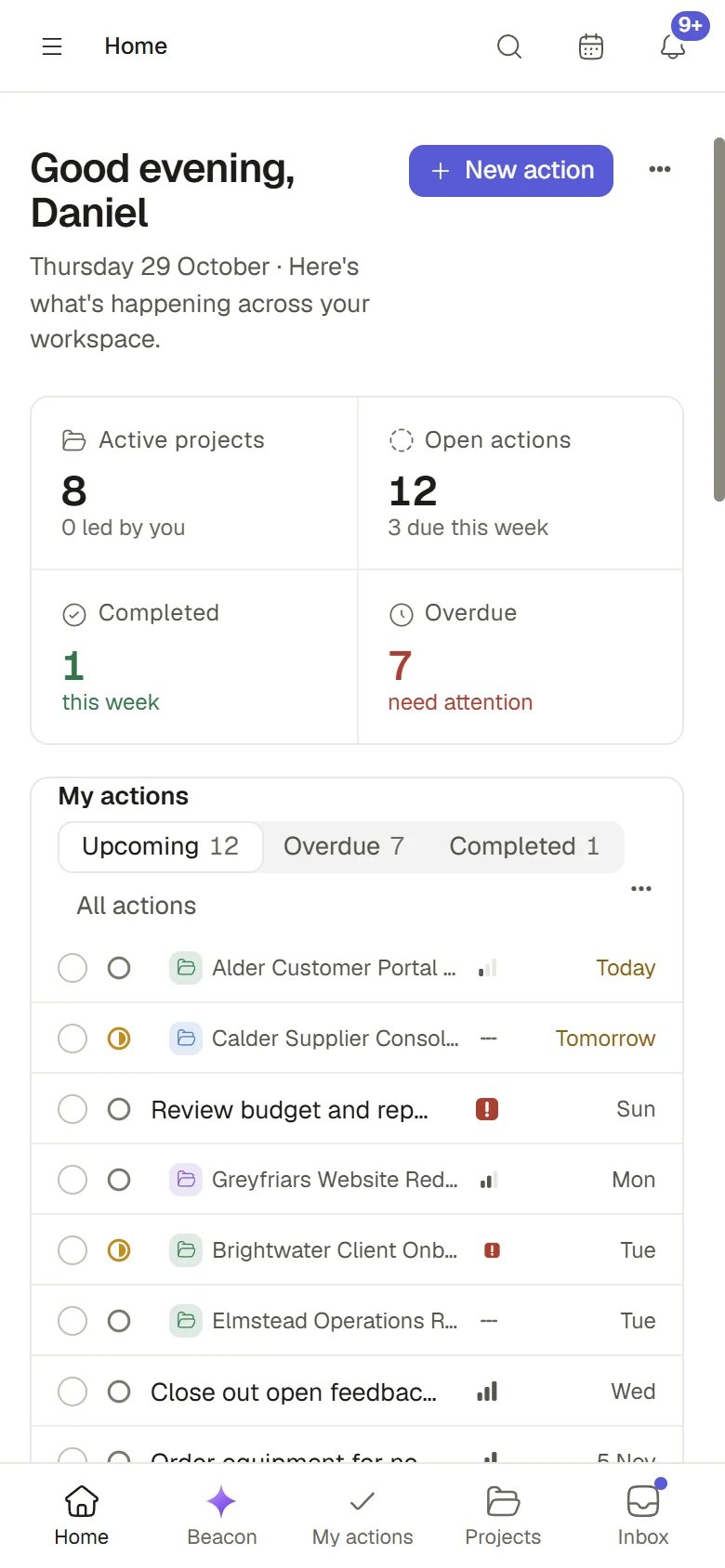
Home on a phone
Before you start
The phone layout appears when the browser window is 640 pixels wide or narrower. On a larger screen you see the sidebar instead. Resize a desktop browser to that width and you will see the same layout. There is nothing to install: Saphion runs in the browser on a phone, a tablet or a computer, and the same account and the same work appear on each.Phone and computer side by side
The work is the same on both. What differs is how you reach it.- On a phone
- On a computer
- Places. The bottom bar holds Home, Beacon, My actions, Projects and Inbox. Everything else is in the sidebar, behind Open sidebar.
- Search. Choose the search icon at the top of the page.
- Beacon. It is a full-screen page of its own from the bottom bar.
- Settings. The sections become one row of tabs, and the Settings search is not shown.
Move around with the bottom bar
The bar along the bottom of the screen holds the five places a thumb reaches first, in this order.
The place you are in, or inside (an open Project lights Projects), is shown in the primary colour. The dot on Inbox shows that you have something waiting. The number is in the Inbox itself.
Open the full menu
The bar is a shortcut, not the whole menu. Every other place is in the sidebar.1
Choose Open sidebar
It is the menu button at the top left of the page.
2
Choose a place
The sidebar lists everything you could open on a computer: Favourites, Creations, Files, Contacts, Members, your Projects and Teams, and the app switcher for products such as CRM. The sidebar is the same menu described in Finding your way around.
Use Beacon on a phone
Beacon in the bottom bar opens the full Beacon page: your chat history, the message box and the answers. A phone has no floating message box and no side panel for Beacon, so everything happens on its own page. Add files, mention records with @ and choose a Skill with / as you would on a computer. See Chat with Beacon.Use Settings on a phone
Open Settings from the sidebar. On a phone the list of sections along the left becomes one row of tabs between the head and the section, which you scroll sideways. The section you are in is filled in and brought into view. The Settings search is not shown; use the tabs. The same sections appear as on a computer, and only the ones you may open. See Finding your way around.What changes on a small screen
- Windows and panels take the screen. A record’s side panel and dialogs open full screen, so there is room to read and type. Close them to return to the page.
- Toolbars and controls are bigger. Buttons are larger to press, and pages and toolbars reflow to fit the width.
- Messages sit above the bottom bar. Notices appear full width above the bar and stay clear of it.
- The keyboard shortcut sheet is one column. Most shortcuts need a keyboard, so on a phone you use the controls themselves.
- Search is the search icon at the top of the page. Choose it for the same search as on a computer. See Finding your way around.
Everything you do on a phone is the same work as on a computer. A change you make is saved at once and appears on your other devices, and what others change appears on your screen as it happens.
Ask Beacon
- “What is overdue for me today?”
- “Add an Action to call the client on Friday.”
FAQ
Is there an app to download?
Is there an app to download?
No. Use your phone’s browser, and bookmark Saphion to reach it quickly.
The bottom bar is missing.
The bottom bar is missing.
It appears only when the window is 640 pixels wide or narrower, and only for work in your Organisation. A tablet in landscape shows the sidebar instead.
Can I use CRM on my phone?
Can I use CRM on my phone?
Yes. Open the sidebar and use the app switcher beside your Organisation’s name. CRM opens with its own sidebar. See CRM overview.
Related
- Finding your way around: The full sidebar and Settings.
- Chat with Beacon: Everything Beacon does, on any device.
- Troubleshooting: If something does not look right.