

Everyone in the Organisation has a Home.
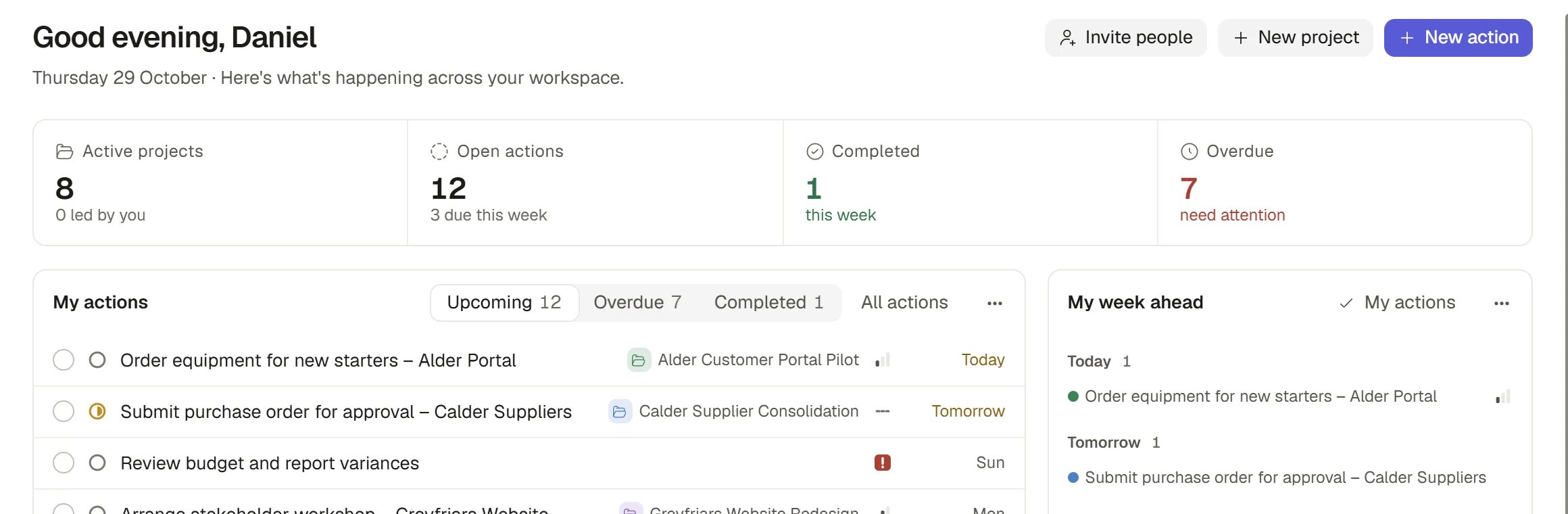
Your Home overview
Check what needs you today
1
Read the figures
The strip at the top has four figures. Active projects counts the Organisation’s active Projects, with how many of them you lead. Open actions counts your own open Actions, with how many are due this week. Completed counts the Actions you finished this week. Overdue counts your Actions that are past their due date.
2
Work down My actions
My actions lists your Actions, soonest due first, with three tabs: Upcoming, Overdue and Completed. Each row shows its status, name, Project, priority and due date. Tick the circle at the start of a row to complete the Action. Select the row to open it in the record panel.
3
Look at your Projects
Project progress lists the Projects you can open, with their status, a progress bar, their target date and their people. The soonest target date is first.
4
Glance at the week ahead
My week ahead groups what falls in the next seven days under Today, Tomorrow and This week: your meetings from a connected calendar and the Actions of yours that fall due. A meeting stays on the list until it ends, and work stays until it is done.
5
Catch up on activity
Recent activity is a feed of what has changed across the work you can open, newest first. The full feed, with filters, is Activity.
Open the work behind a figure
Select any figure to open My actions narrowed to exactly what the figure counts, so the number and the list always agree. The link at the right of a widget’s heading opens the whole place it reads from, named as the sidebar names it. My week ahead opens the calendar view of My actions. Select a row to open the Action or Project.Start something from Home
The buttons at the top right of Home start the most common jobs.
On a phone, Invite people and New project move into the ⋯ menu and New action stays on the screen.
Customise your Home
You can add, move, resize and remove the widgets on your own Home.1
Start editing
Hover over the top right of Home and choose Customise, then Edit layout. A bar appears with Add widget, Reset layout, Cancel and Save changes.
2
Change the layout
Choose Add widget and pick a ready-made widget, or build your own from the Custom widget group. Drag a widget to move it, and use its menu to resize, configure, duplicate or remove it. See Dashboards for every widget type.
3
Save or discard
Nothing changes until you choose Save changes. Cancel drops the draft.

Customising Home
Put Home back as it was
- Reset layout, in the edit bar, puts the widgets back in Saphion’s default layout. Your own widgets and their settings are kept.
- Customise > Put back previous layout undoes your last saved layout. It appears only when Saphion has a previous layout to return to.
How it works
- Home shows only what you have access to.
- Home is yours alone. It is made from Saphion’s default the first time you open it, and nobody else reads or edits it. Changes you save never reach another person’s Home.
- Until you save a layout, Home follows Saphion’s default and picks up improvements to it. Once you save a layout, it stays as you left it.
- Figures read as you. Open actions, Overdue and Completed count your own Actions. Active projects counts the Organisation’s active Projects that you can open.
- Completed work leaves your lists. A completed Action shows under the Completed tab, not under Upcoming.
A figure or widget that shows a message instead of numbers has not failed everywhere. Read the message, then open the place behind it, such as My actions or Projects, to check.
Ask Beacon
- “What is overdue on my Home?”
- “Add a widget to my Home that shows my Actions with no due date.”
FAQ
Why is my Home different from a colleague's?
Why is my Home different from a colleague's?
Home reads as you. Your Actions, your Projects and your meetings are yours, and a colleague sees only their own.
Why does Open actions not match the Actions page?
Why does Open actions not match the Actions page?
Open actions counts only the Actions assigned to you. The company-wide table counts everyone’s Actions that you are allowed to see.
Where are my meetings?
Where are my meetings?
My week ahead shows meetings from a calendar you have connected. If it shows only Actions, connect your calendar in Settings > Your connections. See Connectors.
A widget I removed is gone. Can I get it back?
A widget I removed is gone. Can I get it back?
Choose Customise > Edit layout > Reset layout to return to Saphion’s default layout. Widgets you added are kept, and you can remove any you no longer want.
Related
- Actions: Track a piece of work, and see your own by when it is due.
- Dashboards: Every widget you can add, and how dashboards are shared.
- Inbox and notifications: What is addressed to you, and how it reaches you.
- Finding your way around: What each place in the sidebar is for.