

Everyone with a Platform seat can upload and use Files.
Files in Saphion
Find a file
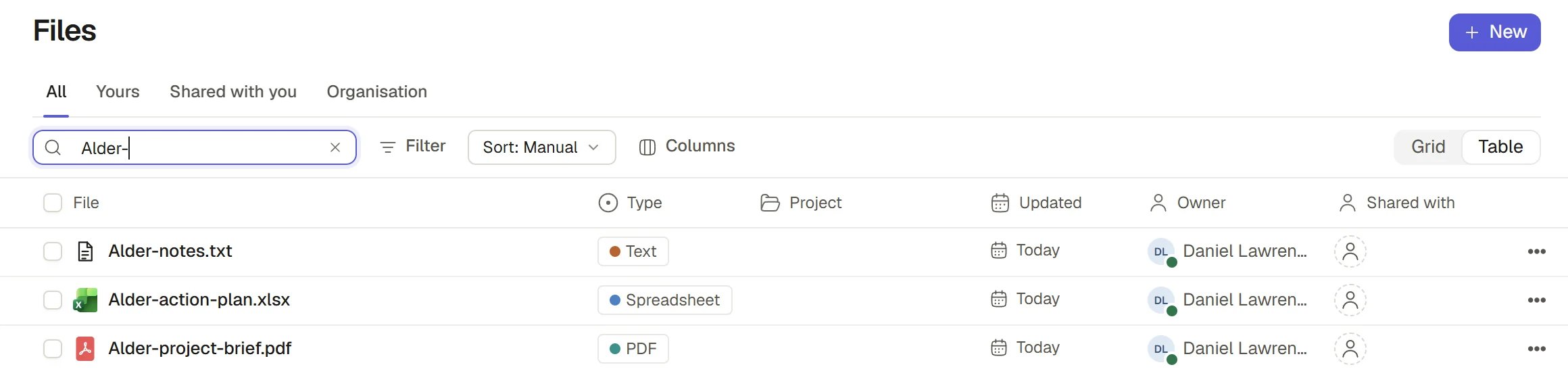
Choose Files in the Workspace group of the sidebar. Files lists the files you can open as a table or as cards, switched with the layout control. Four tabs narrow it:
The table shows each file’s Type, its Project, when it was Updated, its Owner and who it is Shared with. Search by name from the magnifier in the Files sidebar, and filter by type. Sort by name or by when a file was added.
A tab with nothing in it says so: “No files yet”, “You have no files”, “Nothing has been shared with you” or “Nothing is shared with the organisation”. On All, it adds “Upload files to get started. Only you can open them until you share them.”
Upload files
1
Choose New
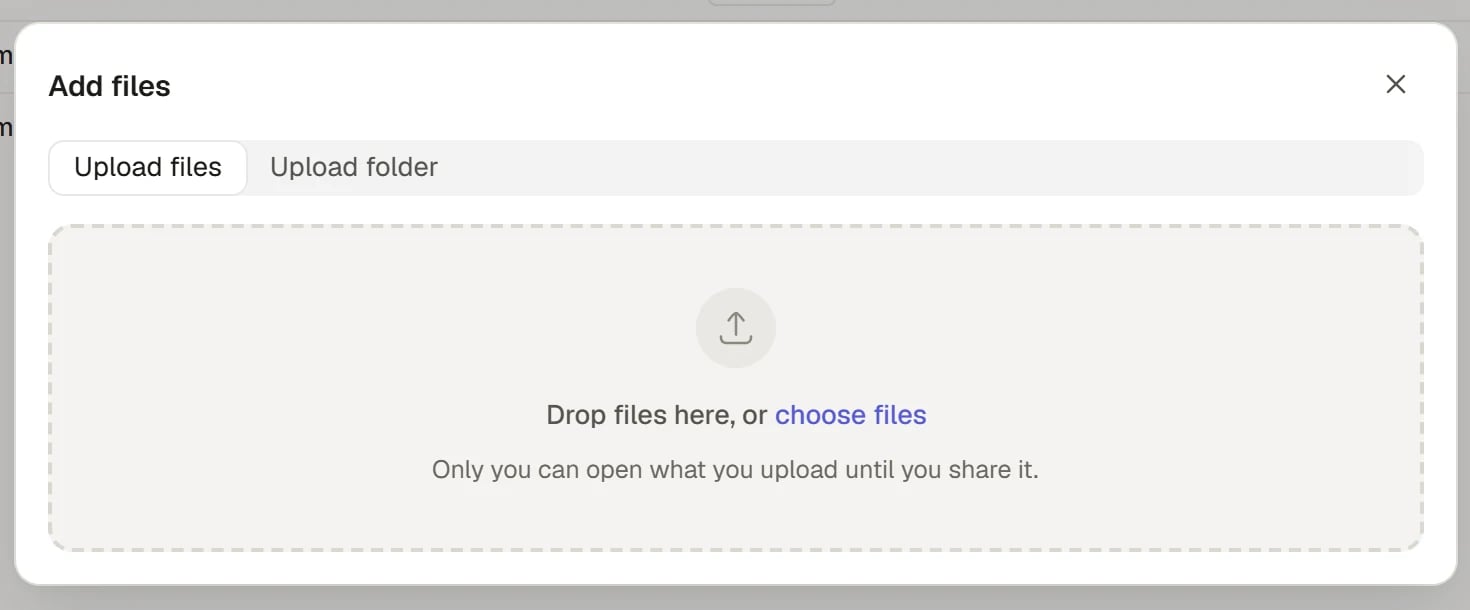
Choose New at the top of Files, then Upload files or Upload folder. The Add files dialog opens with the choice you made, and you can switch between the two.
2
Drop or choose
Drop the files or folder into the dialog, or choose them. The dialog says “Only you can open what you upload until you share it”, and asks for no access choice.
3
Watch the upload
Each file shows “File 2 of 5” and its progress. When every file is stored, the dialog closes. A file that is refused is named with the reason and the dialog stays so you can read it.
Add files
What you can upload
PDFs, Word documents, presentations, spreadsheets, images, SVG graphics, and text and code files. Each file can be up to 25 MB, and an SVG, text or code file up to 2 MB. Another type is refused with “This file type cannot be uploaded”.Open and preview a file
Select a file to open it in the viewer, full width. The viewer previews PDFs, Word documents, presentations, spreadsheets, images, SVG graphics and text. Along the top are the file’s name menu, a zoom control, Download, Share and Close viewer. At the foot, File info opens the details and Comment opens the conversation. File info shows the file’s type and size, who added it, where it was uploaded from, and when it was added and last updated. If you may change the file you can rename it there. See Record panel and attachments. Beacon’s composer stays at the foot of the viewer. Ask about the file there and the conversation opens beside it for as long as you stay.Act on a file
Open a file’s menu, in the table, on a card or in the viewer’s name menu:
You can also set a file’s Project, and who it is shared with, directly in the table. Tick several files to archive or delete them together.
Share a file
1
Open Share
Open the file’s menu and choose Share.
2
Add people
Add the people who need it as an Editor or a Viewer. An Editor can edit it but cannot change who has access. A Viewer reads. You can share a file with people but not with teams.
3
Check it
Shared with on the file shows the right audience.
Browse connected drives
If your Organisation has connected Microsoft 365, the Files sidebar lists a Connected section with its drives, such as OneDrive, SharePoint, Outlook and Teams. They are read live from the provider as you and are never copied into Saphion. Select a drive to browse its folders. A folder opens as its own screen, with a path to go back up, a search box and the columns Type, Modified and Size. A mailbox lists messages by subject with From and Received. Select a file to open it in the same viewer. If a drive cannot be read, the screen says why. See Connectors.Files and Beacon
Beacon reads the files you can open, so what it finds is what you could open yourself. To bring a file into one conversation, choose Add beside the Beacon box, or mention it with @. See Chat with Beacon. A Project’s Context in Beacon is the Project’s own files. See Projects in Beacon. Check what a file contains before you use it in an answer or a decision. Keeping a file in Files does not make it accurate, or approved for a particular use, and it does not give a colleague access to it.A Project’s Files tab
A Project’s Files tab is this list narrowed to that Project, without the Project column. New there adds files to the Project. Files in a Project follow its people. See Projects.How it works
- Who can open a file. A file’s Owner decides who else can open it. Drives your Organisation has connected are read as you, so you see only what you could see in that drive.
- Private first. Everything you upload is private to you until you share it or file it in a Project.
- Separate from records. A file attached to a record is attached, not copied. See Record panel and attachments.
- Read as you. Connected drives, search and Beacon all read with your own access.
Ask Beacon
- “Find the latest signed contract for the Harbour Road Project.”
- “Summarise the PDF I uploaded this morning.”
FAQ
Why can a colleague not see the file I uploaded?
Why can a colleague not see the file I uploaded?
It is private to you until you share it. Open its menu and choose Share, or Move it to a Project.
Why did a file upload fail?
Why did a file upload fail?
Check its type and size. Files can be up to 25 MB, and some types are not accepted. The dialog names each refused file and the reason.
I deleted a file by mistake.
I deleted a file by mistake.
Choose Undo on the message that follows, or restore it from the Bin within 30 days.
Related
- Sharing and access: Who can open and edit a file.
- Record panel and attachments: Attach files to a record.
- Connectors: Connect Microsoft 365 and other drives.
- Bin and restore: Bring back a deleted file.