

For Organisation Admins.
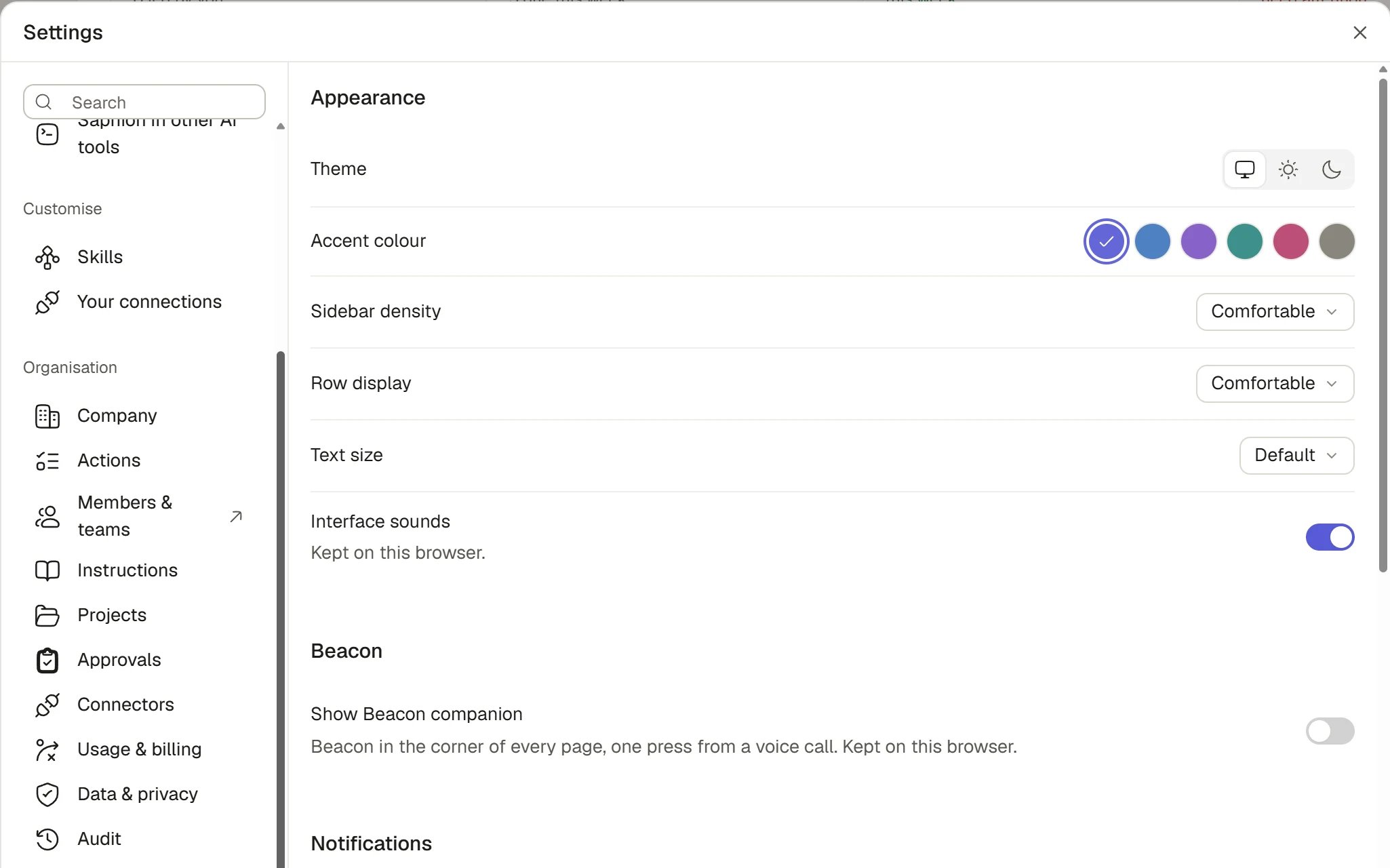
Organisation settings
Open the Organisation settings
Choose Settings at the foot of the sidebar, then the Organisation group in the left column (the third, after Preferences and Customise); a group with nothing for you is not drawn, and Search at the top of the column finds a section or an individual setting, for example “Financial year” or “Memory”. You can also choose your Organisation’s name at the top of the sidebar and then Organisation settings, which opens Company. A section with an arrow beside its name, such as Members & teams, closes Settings and opens a page of its own. See Finding your way around.What you control
Beside the Settings sections
- Administration is a list under the Settings menu with Exports, the designs of the documents and workbooks Saphion produces, and All products. See Import and export.
- Templates holds the boards new Projects start from. Anyone can open them and Admins make and edit them. See Templates.
- Company Overview is offered to Admins and to the people they invite. See Finding your way around.
- Skills and Your connections, under Customise, belong to each person. An Admin also adds custom connectors from Your connections. See Skills.
A sensible order for a new Organisation
1
Check Company
Set the currency, financial year and working week. See Company.
2
Bring people in
Create Permissions and teams, then invite people with the Access, seats and teams they need. See Invite and manage people and Teams and Permissions.
3
Set up Projects
Set the Project statuses, and decide what a new Project must state. See Projects settings.
4
Choose connectors
Choose which connectors to allow, and set the tool ceilings. See Connectors for your Organisation.
5
Write instructions
Write the Organisation’s instructions for Beacon. See Instructions.
6
Review Data & privacy
Decide Memory and how long conversations are kept. See Data and privacy.
How it works
- Members can read two sections. They can read Company and Actions but cannot change them. Everything else here is for Admins only.
- Admins are checked by the server. A section is simply not offered to someone who may not use it. If they open its link, Saphion says “Only Admins can open [section]. Ask an Admin.” and closes the window.
- Some things are Saphion’s to set. Your plan, seat allowances and the named Pro and Max upgrades come from your contract and are changed by asking Saphion. The Company name is Saphion’s too. See Usage and billing.
- Changes are recorded. People, roles, seats, access and configuration changes appear in Audit for six years.
- Settings change nothing about access to a Project. What someone can open still follows sharing. See Sharing and access.
- Beacon reads, you change. Beacon can tell a colleague what your Project statuses or working week are. It does not change Organisation settings.
- There is always an Admin. The last Admin of an Organisation can never be deactivated or leave.
FAQ
Why don't I see a section?
Why don't I see a section?
Most Organisation sections are for Admins. A group with nothing for you is not drawn. Ask an Admin to make the change, or to change your Access.
Where are my own settings?
Where are my own settings?
Under Preferences and Customise, in the same window. They are yours alone. See Your account.
Can there be more than one Admin?
Can there be more than one Admin?
Yes. Any Admin can change another person’s Access, though nobody can change their own. See Invite and manage people.
How do I ask Saphion to change something I can't?
How do I ask Saphion to change something I can't?
Use Help & resources in the sidebar, then Support & feedback. See Contact Support.
Related
- Invite and manage people: Invite people, set Access and give product seats.
- Sharing and access: How Project and record access works beside your settings.
- Finding your way around: The sidebar and the Settings window.
- Contact Support: Ask for seats, products or a change only Saphion can make.