

Organisation Admins open Approvals in Settings and make or change approvals.
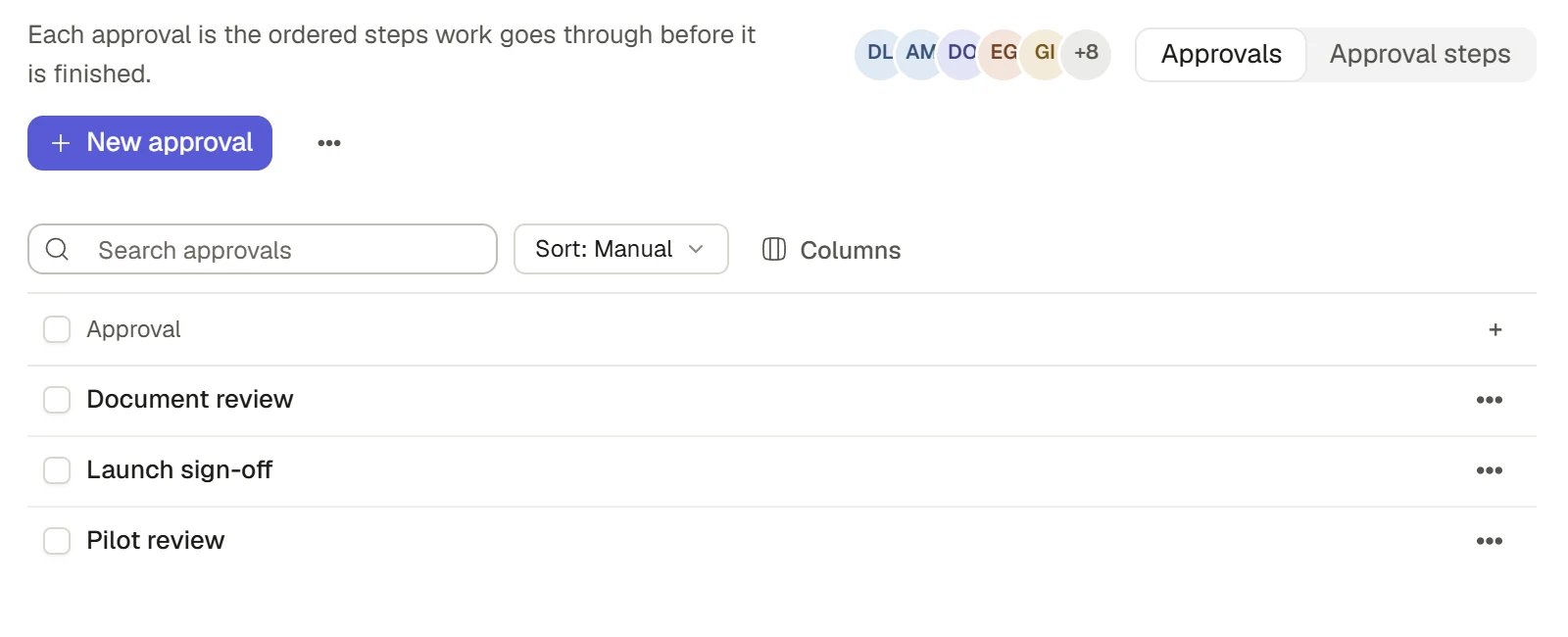
Approvals
Before you start
A step is signed as a Permission: whoever holds that Permission can accept the step, so a review follows a handover instead of waiting on someone who has left. Create the Permissions first. See Teams and Permissions. Work with no approval is finished by the person doing it. Nothing here imposes a review on work that has none.Open Approvals
Choose Settings in the sidebar, then Approvals under Organisation. A switch at the top moves between two boards:
Select a row to open it in place of the table, with ← Approvals to go back. The address
#settings/approvals/levels opens the steps board.
Create an approval
1
Open the Approvals board and choose New approval
A form asks for the approval’s name.
2
Name it
Name it for the kind of work it signs off, for example “Method statement review”.
3
Save it
The approval now exists but has no steps. Add them next.
Add the steps
1
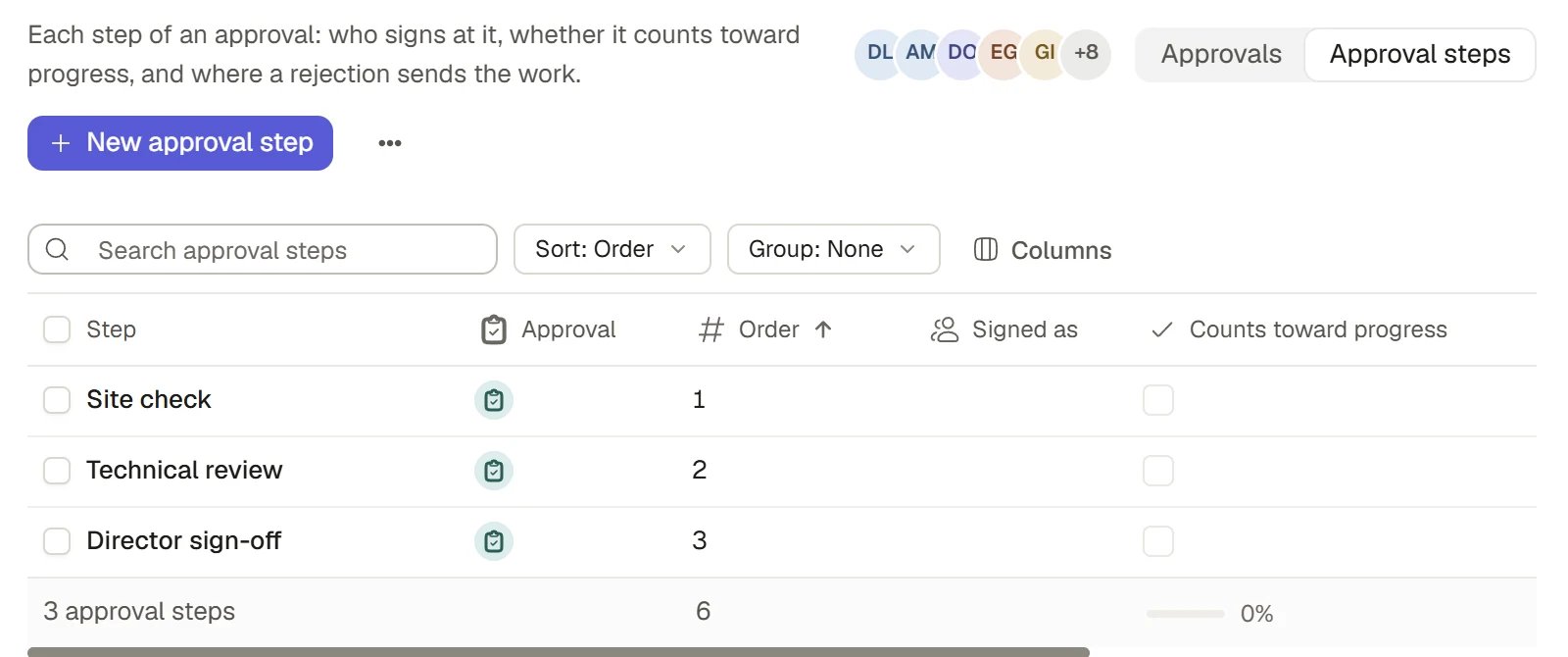
Switch to Approval steps and choose New approval step
The new step belongs to an approval. Pick it in Approval.
2
Name the step and give it an Order
Step is its name. Order is its place in the approval. Two steps of one approval cannot share a position.
3
Choose Signed as
Choose the Permission whose holders sign here. Choose two and both must sign: it is one decision made by two people, not two steps one after the other.
4
Set the rest
Choose whether it Counts toward progress, where it Returns to, and the other options in the table in How it works.
Approval steps
Attach an approval to work
An Action’s Approval field names the approval its work goes through. Choose one on the Action. Files being reviewed names the files the approval is signed off against. See Actions.Sign off work
When the person doing the work reports it complete, it waits at the first step. Open the Action to see the approval with each step.1
Open the Action awaiting review
It shows Awaiting review at the current step. The approval lists Reported complete, then each step with who has signed and who it is waiting on.
2
Choose Accept as a Permission
The button reads Accept as and the Permission’s name. If you cannot sign here, it is unavailable and says why.
3
Or choose Send back
Add Why it is going back if you wish. The Action shows Sent back by you, the date and your note.
How it works
- Who signs. People who hold the Permission a step is signed as accept or send back the work at that step.
What a step holds
How work moves through an approval
This shows an approval with three steps. Yours can have as many as the work needs. A send-back goes one step back unless the step’s Returns to names another earlier step.The rules Saphion holds
- One step counts. At most one step of an approval counts toward progress. If none is marked, the first step counts. Counting the last would hide finished work while it queues.
- A send-back goes one step back unless the step says otherwise. The first step returns to the person who reported the work. A step can return only to an earlier step of the same approval, never a later one.
- The last acceptance finishes the work. Reporting complete and accepting are separate events. A record shows who reported it and who accepted each step.
- A rejection reverses the effect. Progress that an accepted step added is taken back when work is sent back or an acceptance is withdrawn.
- A broken approval is refused in words. If two steps share a position, or a step returns to a later step, Saphion says so when someone tries to use the approval, naming the approval and step.
Who may change approvals
Only an Admin can open Approvals in Settings and create or change approvals and steps. The decision to accept or send back is each person’s own and follows the Permission they hold.FAQ
Who can sign when the person who held the Permission has left?
Who can sign when the person who held the Permission has left?
Whoever holds the Permission now. A step is signed as a Permission, not as a named person, so a handover carries the review with it.
Can one person sign two steps?
Can one person sign two steps?
Yes, unless the later step ticks Signed by somebody who signed nothing else in this review.
Can I change an approval while work is in it?
Can I change an approval while work is in it?
Admins can edit approvals at any time. Saphion refuses a configuration that cannot work, such as two steps in one position, and says why.
Related
- Teams and Permissions: Create the Permissions that steps are signed as.
- Actions: Status, owners and the work an approval signs off.
- Audit: A record of configuration changes.