

Everyone in the Organisation can read Company, and Organisation Admins change it.
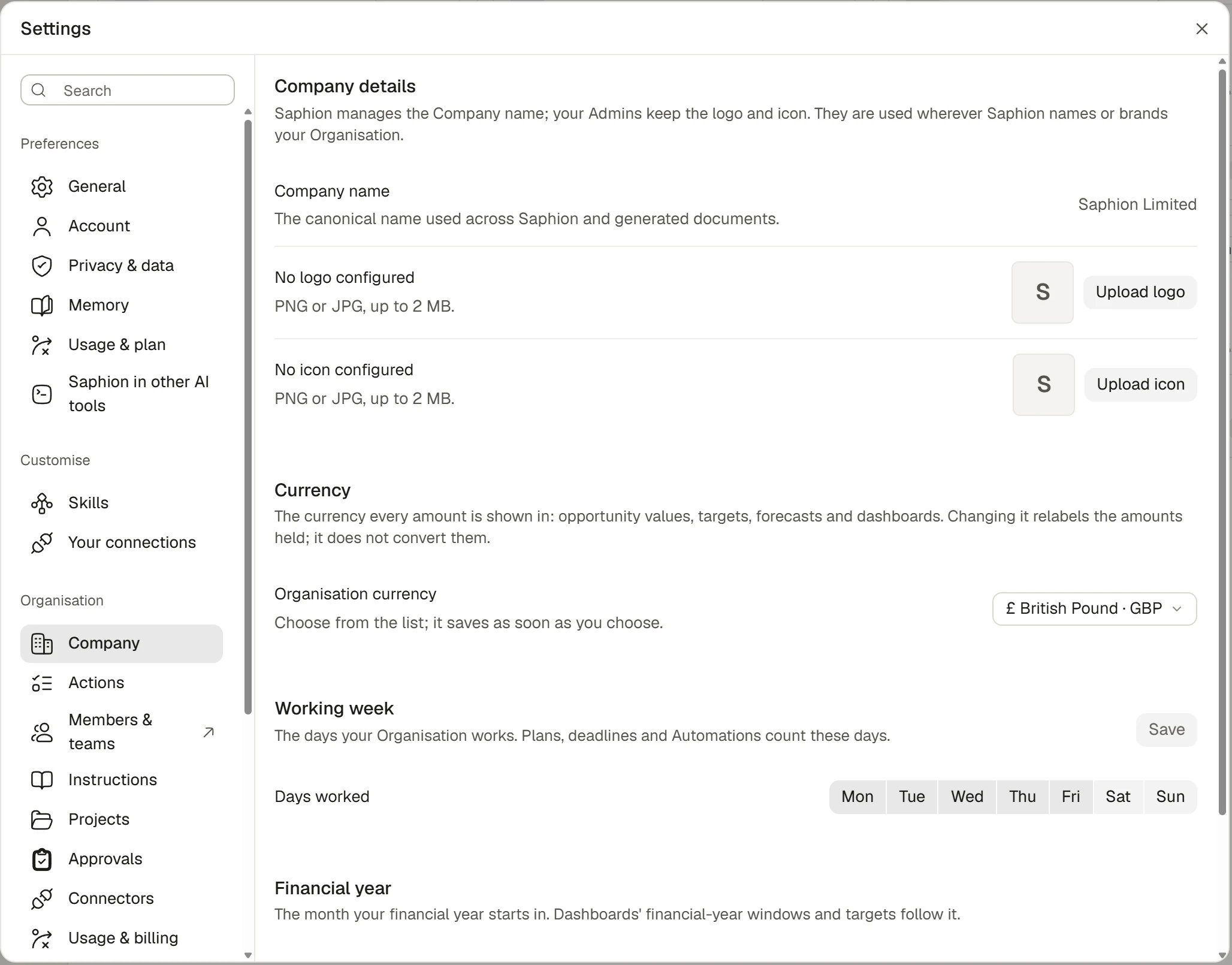
Company settings
Open Company
Choose Settings in the sidebar and then Company under Organisation. As an Admin you can also choose your Organisation’s name at the top of the sidebar and then Organisation settings, which opens Company.Add or replace the Company logo and icon
The Company has two marks. The logo is the full logo, used on documents and exports. The icon is a square mark, used in the app wherever a small company mark is needed. Until you add them, Saphion shows the first letter of the Company name.1
Choose Upload logo or Upload icon
A row reads No logo configured or No icon configured until you add one. If you are not an Admin the row says “Ask an Admin to add your Company logo.”
2
Pick a file
The file must be a PNG or JPG of up to 2 MB. Saphion checks that the contents match the type.
3
Check the preview
The mark appears at once and the brand refreshes everywhere. Only a refusal is announced.
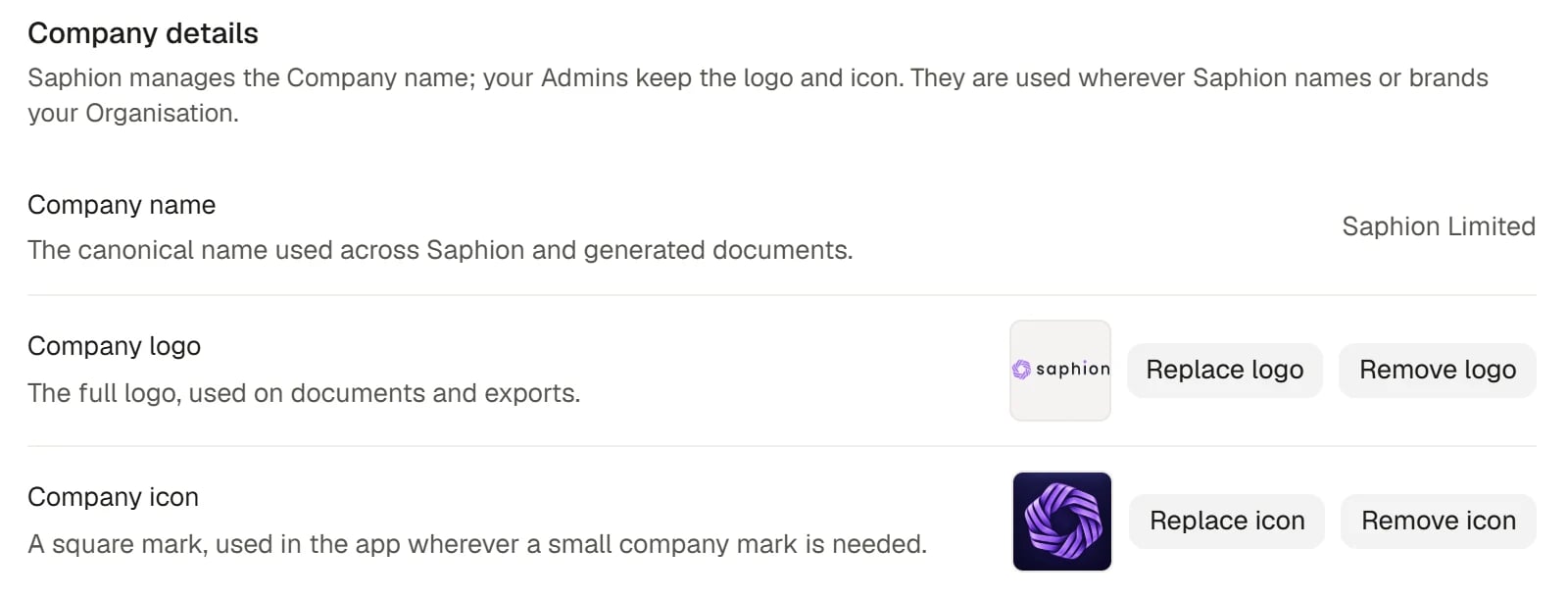
Company logo and icon
Change the currency
The Organisation has one currency. Opportunity values, targets, forecasts and Dashboards all show amounts in it. New Organisations start in pounds sterling (GBP).1
Open the Organisation currency picker
It lists the currencies by symbol, name and code. Type in Search currencies… to narrow it.
2
Choose a currency
It saves as soon as you choose. Saphion then re-reads your Organisation so that every figure uses the new code.
Set the start of the financial year
Choose a month in Financial year starts. It saves as soon as you choose. Dashboards’ financial-year windows, and targets and their periods, follow it. New Organisations start in April. Targets that are already set keep the months they were set for.Set the working week
Days worked shows seven buttons, Mon to Sun. A button that is pressed is a working day. Plans and deadlines count only these days. New Organisations work Monday to Friday.1
Press the days to change
Press a day to turn it on or off. At least one day must stay on, and Saphion says so if you turn them all off.
2
Choose Save
Save is available only after you change something.
How it works
- Who changes Company. Only Organisation Admins can change the logo, icon, currency, financial year and working week. Saphion manages the Company name.
The currency and the marks are written against the version of your Organisation’s details that you read. If someone else changed them in the meantime, Saphion refuses your change and asks you to read it again, rather than writing over theirs.
Changes to the logo, icon, currency and working week are recorded in Audit.
Ask Beacon
Beacon can read your working week but never changes it. Try: “Which days does our Organisation count as working days?” An Admin makes the change here.FAQ
Why can't I change the Company name?
Why can't I change the Company name?
Saphion manages it as the canonical name used across the product and in generated documents. Ask Support if it needs to change.
The logo will not upload.
The logo will not upload.
It must be a PNG or JPG of up to 2 MB. Other types, such as WebP or SVG, are refused. A file whose contents do not match its type is refused too.
I changed the currency and my amounts did not change.
I changed the currency and my amounts did not change.
That is expected. Saphion relabels the amounts and converts none. Edit the amounts if they were in a different currency.
Can each team or product have its own currency or week?
Can each team or product have its own currency or week?
No. There is one currency, one financial year and one working week for the Organisation.
Related
- Admin overview: Every setting an Admin controls, and where it lives.
- Forecast: Targets and periods follow the financial year.
- Audit: Who changed the Company settings, and when.