

Organisation Admins only.
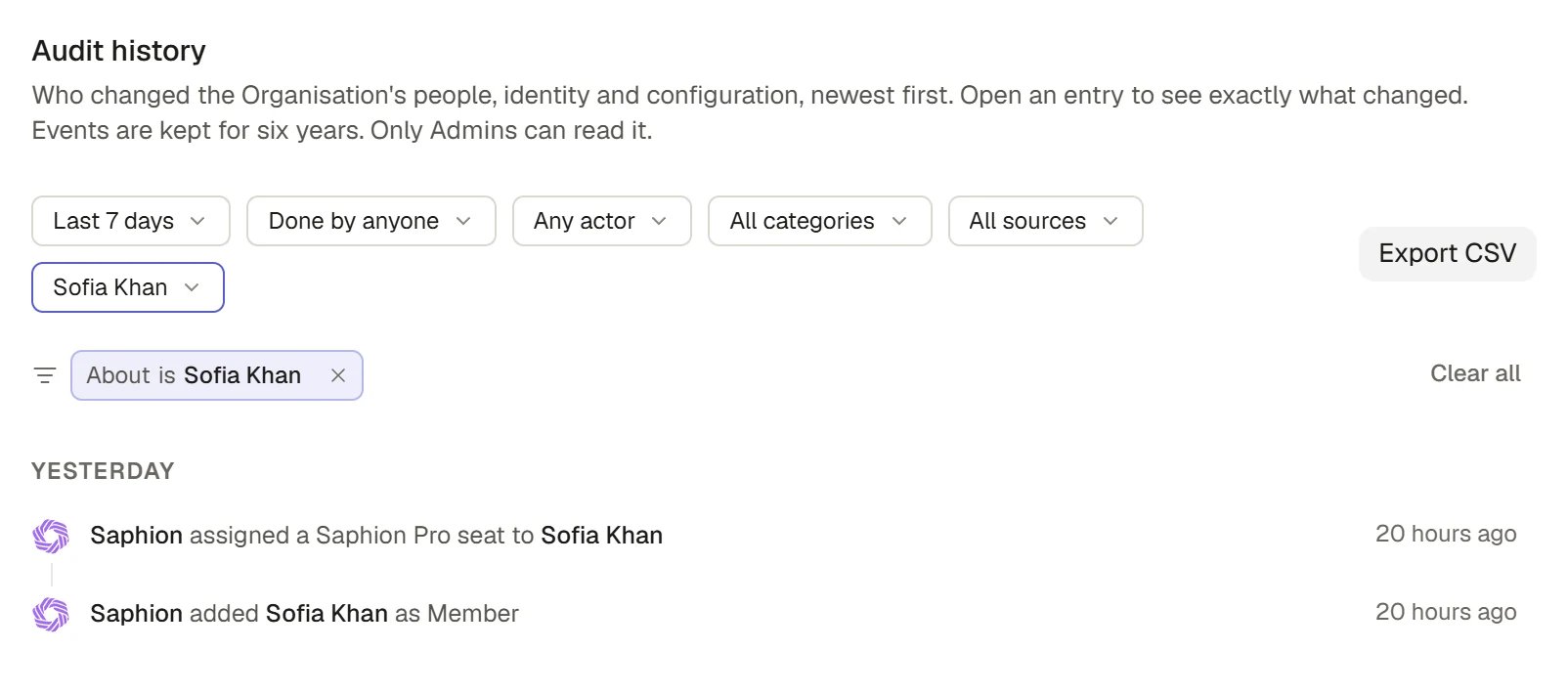
Filter the audit history
Open Audit
Choose Settings in the sidebar, then Audit under Organisation. The list shows the last seven days, newest first, until you ask for something else. If nothing has happened in the window, it reads “No audit events. Changes to permissions, settings and seats appear here.”Find an event
Use the bar above the list. Each choice narrows the list, and the Export CSV button follows it.
Every choice that narrows the list below its default also appears as a chip under the bar, such as Category is Seats and products. Select a chip’s remove mark to take that choice off, or clear them all at once. Nothing applied is ever hidden.
Read what changed
Select an event to open it in a panel on the side. It shows:- Done by, When, Source, Category and About. Next to About an Open button goes to the item itself.
- Changes: a table with Field, Before and After for every field the event changed. A value that was empty reads “Not set”. An event with no field changes says “This event records no field changes.”
- Other changes in this act: the other events that were part of the same act, such as a person being deactivated and their work handed over. Select one to read it.
Follow everything about one item
Choose Show every change to the item at the foot of the panel. The list narrows to that item and widens to the longest window, so you see its whole history. An About chip shows what you are following, and you remove it to go back. The button is not offered for the Organisation itself, because every setting is about it.Export the history
1
Set the filters
Narrow to what you need: a window, a person, a category.
2
Choose Export CSV
Saphion writes a file for exactly the events your filters select, not only the ones on screen, and downloads it.
3
Open the file
It is named
audit-history and has the columns When, Who, What happened, About, Event and Reference.How it works
- The history is read-only. Audit offers no way to edit or delete an entry.
Categories
Retention and who can read it
- Events are kept for six years. No Organisation sets its own period. This is the longest the platform keeps any record of who did what.
- Only Admins can read it. Anyone else who follows a link is told “Only Admins can open Audit. Ask an Admin.”
- Each event reads as a sentence, newest first. Opening it shows the structured before and after.
FAQ
How far back can I look?
How far back can I look?
Six years. The date choices go up to Last 12 months. Use Custom range for an earlier period.
Why is there no change to a record, a Project or an Action?
Why is there no change to a record, a Project or an Action?
Audit is about people, roles, seats, access, configuration and similar Organisation-level changes. Changes to the work itself appear in each item’s own activity and in Activity.
Can a Member see the audit history?
Can a Member see the audit history?
No. Only Admins can open Audit.
Why did my export say it holds too many events?
Why did my export say it holds too many events?
The file is limited to 20,000 events. Narrow by a window, a person or a category, then export again.
Does Saphion staff acting for us show up?
Does Saphion staff acting for us show up?
Yes. Saphion staff is one of the kinds of actor you can filter by.
Related
- Invite and manage people: The people, Permissions and seats Audit records.
- Activity: What changed in the work you can access.
- Bin and restore: Deleting, restoring and permanent deletion.