

Everyone with a Platform seat has Beacon.
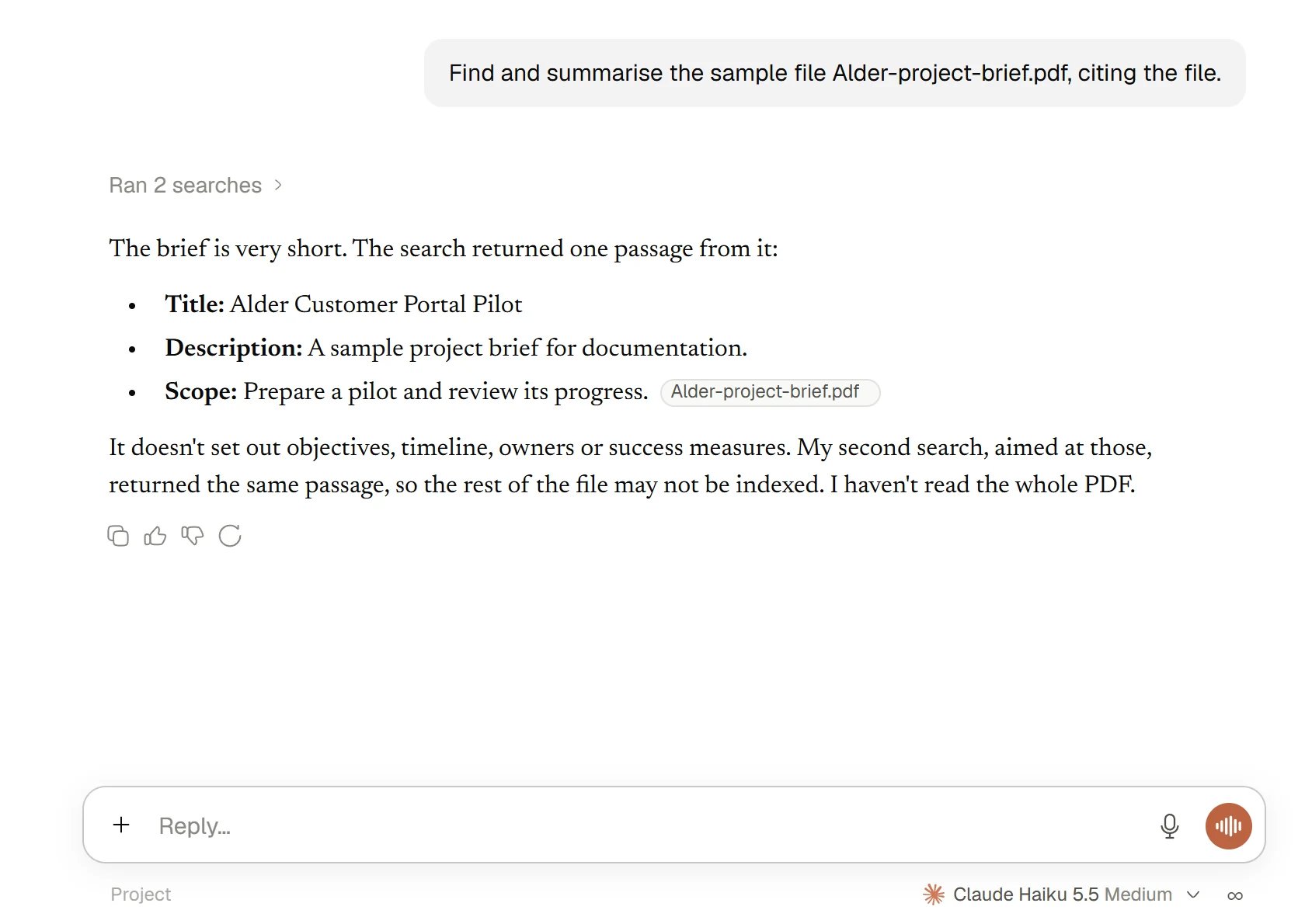
A conversation with Beacon
What Beacon can do
Beacon uses the same tools you do, each one limited by your permissions.What Beacon will ask you first
How much Beacon asks depends on what it is about to do.What Beacon never does
- It never goes beyond your access. A request cannot give Beacon, or you, access you did not already have.
- It never permanently deletes anything, and it never empties the Bin. Those are always a person’s act in the app.
- It shares an item only with people already in your Organisation, or with Teams, and only after you choose Allow on the card that names who and how. It never changes a Permission, and never invites people to your Organisation, deactivates them or changes their Organisation role. Filling a role on a record, or adding someone to a Team you own, gives the access that role or Team carries, as it would if you did it yourself.
- It never reads another person’s chats. Only you can open your chats.
Beacon is AI and can make mistakes. Check consequential work, and use the sources it names.
Open Beacon
Choose Beacon in the sidebar. The chat opens with a greeting and a box that reads “Ask anything or start a task…”. Type, press Enter to send, and press Shift + Enter for a new line.- New chat is the first row of Beacon’s sidebar. The shortcut is Ctrl + Shift + O (⌘ ⇧ O on a Mac).
- On most other screens, a round Open Beacon button sits at the foot of the page. Press it to open a chat that can see the screen you are on. Drag the card to another position, and fold it back to the button with Minimise Beacon.
- A Project has its own Beacon screen. See Projects in Beacon.
Find your way around Beacon
Beacon’s sidebar lists your Pinned chats and favourite Projects, your Projects, and your Recents, and also has Creations, which lists what you and Beacon have made. Everything else you set up for Beacon lives in Settings.Ask Beacon
Beacon can explain itself. Try “What can you do in my Projects?” or “Which of my connected tools can you use right now?”FAQ
Can Beacon see my colleagues' chats?
Can Beacon see my colleagues' chats?
No. Chats are private to the person who started them, including chats filed in a shared Project. See Chat with Beacon.
Why did Beacon say it could not do something?
Why did Beacon say it could not do something?
Usually because you cannot do it yourself, because the tool is blocked in Settings > Your connections, or because your Admin has turned the connector or web search off. Beacon names the reason when it can.
Does Beacon learn from my chats?
Does Beacon learn from my chats?
Beacon remembers only what you ask it to remember. Those memories are listed in Settings > Memory, where you can pin or forget any of them. See Memory and privacy.
Who decides what Beacon is allowed to do?
Who decides what Beacon is allowed to do?
You do, within your Organisation’s limits. Your Admin sets the ceiling for each connected tool, and you can only make a tool stricter for yourself.
Related
- Instructions: Standing guidance for Beacon at Organisation, Project and personal level.
- Connectors for your Organisation: For Admins: which connectors are available and how far Beacon may go with each tool.
- Activity: See what you, Beacon and your connected tools have changed.
- Sharing and access: Why Beacon can open only what you can.