

Anyone who can open a template can read and use it, and only Organisation Admins make, extend, replace and delete templates.
Templates
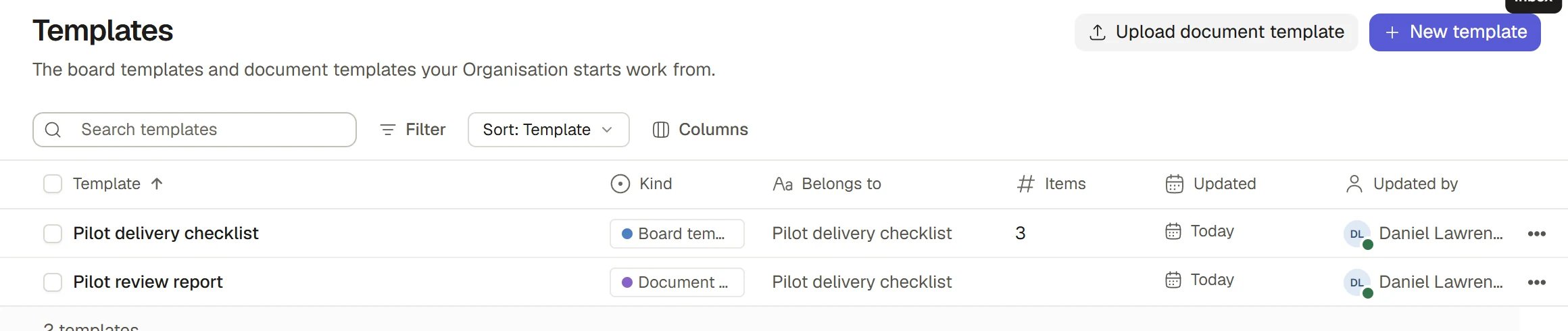
Find your templates
Choose Templates in the Tools group of the sidebar. Each row is one template.
Search and filter the table like any board. Select a board template to open its first board. Select a document template to open it in a panel.
Create a board template
1
Start the template
Choose New template. Only Admins see it.
2
Name its first board
The dialog is titled New template and says a template starts with one board, named for it. Enter the Board name and choose an Item type: the kind of record the board holds, such as Actions.
3
Create it and fill it in
Choose Create template. The board opens. Add rows to it like any board. See Boards, tables and views.
4
Add more boards
Open the template’s row menu in the table and choose Add board to give the template another board.
Row numbers
A template row is numbered by its section and its place in it, such as 3.4. A flat template just numbers its rows, such as 4. When you bring rows into a Project, they keep the template’s numbering.Bring a template’s rows into a Project
Use this to start a Project’s Actions from a standard list without copying every row.1
Open the board
Open the board that should receive the rows, such as a Project’s Actions tab.
2
Choose Import from template
Open the board’s ⋯ menu and choose Import from template. Pick a template. If no template holds that kind of record yet, Saphion says so and offers New template.
3
Tick the rows you need
The dialog is titled Import from and the template’s name. Every row starts ticked. Untick what you do not need, use Search rows to find one, and Select all or Select none to tick or clear the rows shown. The button counts what will be added.
4
Import
Choose the button, for example Import 12 actions. Saphion files copies of the ticked rows in the Project, and says how many it made and which template they came from.
Upload a document template
A document template turns a record into a Word or PDF document.1
Start the upload
Choose Upload document template. Only Admins see it.
2
Choose the board and the file
Pick the Board whose records fill the template, enter a Template name, and choose a
.docx or .xlsx file. Put placeholders in the file where a record’s values should go. Each placeholder is checked against the board’s fields.3
Add written sections if you want them
A written section has a Section name and What to write. Beacon writes the text for it when the document is made.
4
Save and check the mapping
Saphion opens the template’s panel. Placeholders says how many are in the file and whether they are all mapped. Under In this file, each placeholder shows what it resolves to, Mapped or Not mapped. Under Copy a placeholder, copy a field’s placeholder with the copy button to paste it into the file.
5
Preview and publish
Choose Preview to open a sample document. When every placeholder is mapped, choose Publish. The template is a draft, “not yet used for documents”, until you do.
Generate a document from a record
Open a record on the board a published document template belongs to. In its More menu choose Generate document, or Generate and the template’s name where the board has several. Saphion renders the document on the server and opens it. The Word and PDF files appear in the record’s Documents section, and making it again replaces the files in place. A template with written sections cannot be made from a button, and Saphion says so.Delete a template
Open a board template’s row menu and choose Delete. Saphion asks you to confirm. The template and its boards are deleted permanently, but Projects already made from it are not changed.How it works
- A template is not a Project. Bringing rows in copies them. Later changes to the template do not alter work already done.
- Rows are read each time. The dialog reads the template as it is now.
- Documents never publish half-mapped. A document template cannot be published while any placeholder is missing from its board.
- Old documents stay. Publishing a new file changes documents made from then on. Documents already issued are not rewritten.
Ask Beacon
- “Import the standard site set-up rows into the Harbour Road Project.”
- “Generate the handover document for this record.”
FAQ
Why can I not see New template?
Why can I not see New template?
Making templates is for Organisation Admins. Ask an Admin to make one, or to give you the access.
Why does the Import from template choice not list my template?
Why does the Import from template choice not list my template?
Only templates that hold the kind of record on this board are listed. Make a template for that kind of record first.
Can I change the look of exported documents?
Can I change the look of exported documents?
Yes. Admins set the design of the documents and workbooks Saphion produces in Settings > Administration > Exports. See Import and export.
Related
- Import and export: Bring records in from a spreadsheet, or take them out.
- Projects: Bring a template’s rows into a Project.
- Boards, tables and views: Build the boards a template holds.
- Record panel and attachments: Where generated documents appear.