

Everyone with a Platform seat can make dashboards and see their own.
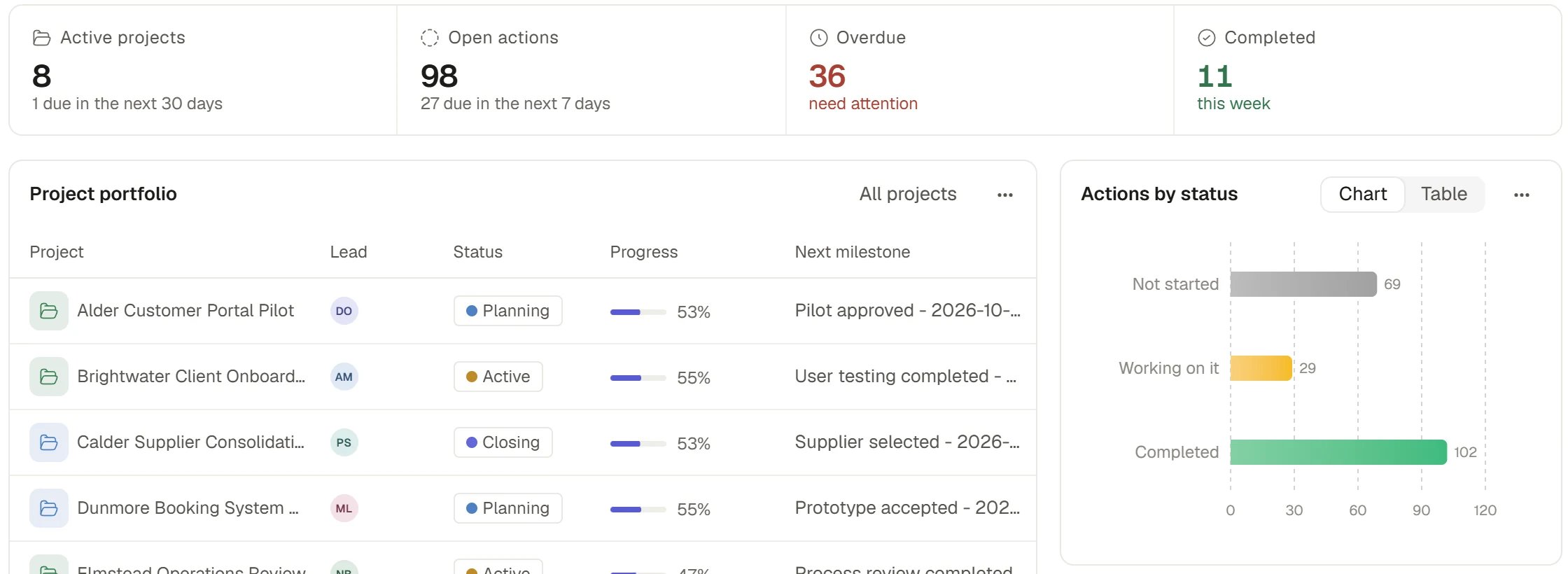
A dashboard
Make a dashboard
1
Start it
Choose Creations, then New > Dashboard. A Project’s Creations tab offers the same choice and files the dashboard in that Project. A new dashboard opens straight away and is private to you.
2
Say what you want to see, or build it yourself
An empty dashboard asks “What would you like to see?” with the example “show overdue actions by project and completed work this month”. Describe it and Beacon builds the widgets, which you can then adjust. Or choose Add widget and build it by hand. See Build a dashboard with Beacon.
3
Add widgets
In Add widget, pick a ready-made widget or a custom one. See below.
4
Save
Choose Save changes. Nothing is kept until you do, and Cancel drops the draft.
Build a dashboard with Beacon
Ask Beacon for the dashboard you want, in a chat or from an empty dashboard. Beacon starts a blank dashboard, then adds its widgets one at a time. It checks each widget as it saves it, and tells you what each one shows. If a widget does not fit its data, for example a field that cannot be counted, Saphion refuses it and names the widget, the setting and the fix, so Beacon can put it right. When Beacon makes a dashboard in a chat, the dashboard opens beside the chat straight away and shows that it is being made. It fills in as each widget is added. A dashboard Beacon made is yours like any other: it is private to you, or filed in the Project you asked for, and you can edit, share or delete it. You can also ask Beacon to change one widget, move it or remove it, without touching the rest. Claude, ChatGPT and other connected tools build and change dashboards in the same way. See Saphion in other AI tools. A dashboard has its own screen, with its name as the heading and a star beside it. If you have several, Creations lists them all. See Favourites and Creations.Widgets
Choose Add widget, or Customise > Edit layout on an existing dashboard and then Add widget. The dialog says “Choose a ready-made widget, or build your own.”Ready-made widgets
Ready-made widgets are grouped on the left by what they read, and each card shows a preview. Choose a size if the widget offers more than one, then choose Add and the widget’s name. Search with Search widgets.Custom widgets
Choose Custom widget to build your own. Pick a kind, then Configure it: choose the data, how it is measured and how it is shown.
A kind that has no compatible data yet is greyed and says “No compatible source is currently available.”
Arrange and change widgets
In edit mode each widget can be dragged to a new place. Its menu offers Configure, Width, Size, Settings, Duplicate, Columns where it is a table, Download image and Delete widget. Width is one of quarter, third, half, two thirds or full, and a kind offers only the widths it reads well at. Height follows the content. Deleting a widget asks you to confirm.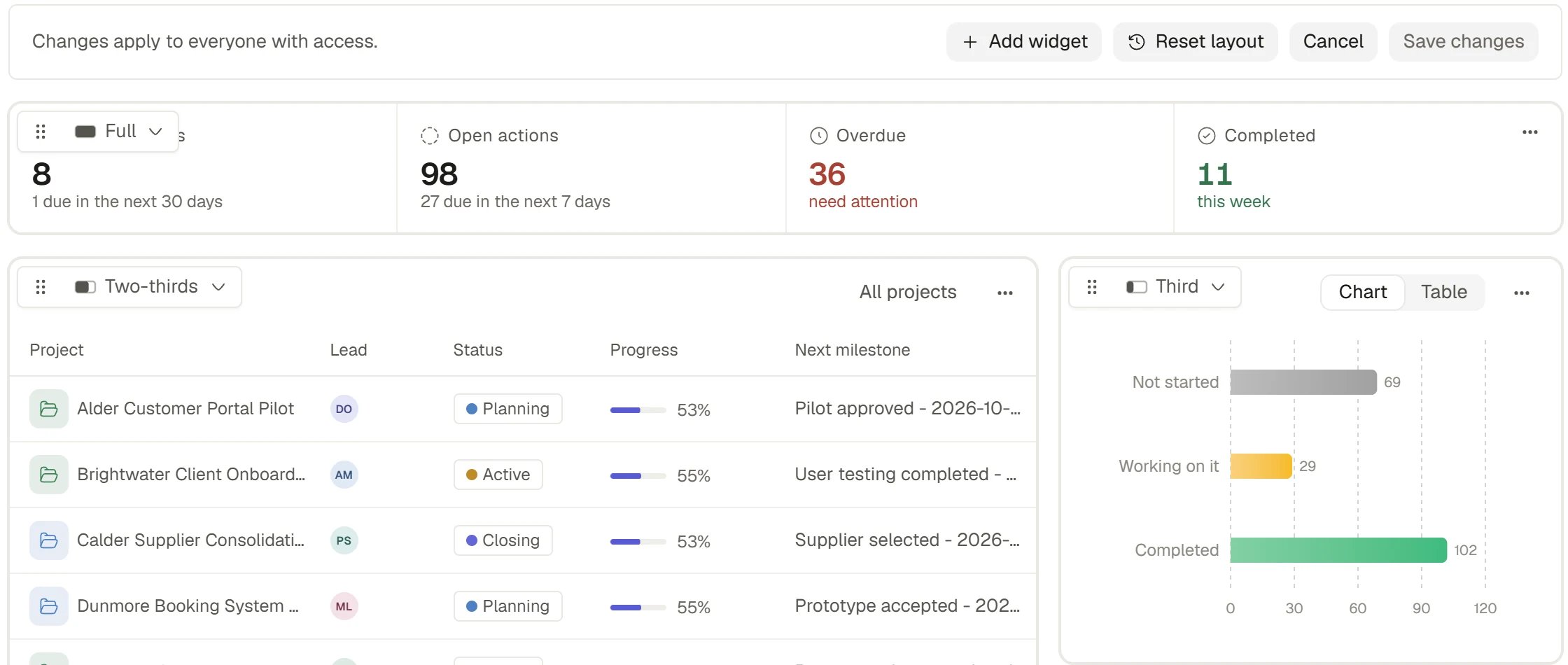
Editing a dashboard
Filter a dashboard
Choose Filter in the header. The dashboard can be narrowed by a Project, a person or a product, whichever its data offers, and every widget follows at once. The conditions appear as chips under the heading, and Clear all removes them. A shared dashboard is looked at together, so it has two kinds of filter.- The dashboard’s own filter. An Editor sets it in edit mode, with Filter in the header, and it is saved with the dashboard. Everyone who opens the dashboard starts from it, so a meeting looks at the same picture.
- Your own view. Outside edit mode, your filter, period, product and chart looks are yours, and Saphion keeps them for next time. Nobody else sees them, and they never change the saved dashboard.
Share a dashboard
The faces in the header open the Share dialog. A dashboard you made has an Owner and two levels for everyone else: Editor and Viewer. The Owner can Transfer ownership, and an Admin can open a dashboard to the whole Organisation, as view only. Someone who cannot open a dashboard can ask for access. See Sharing and access. Sharing a dashboard never gives anyone more records than they already have. Every widget reads as the person looking at it, so a colleague sees only the records they are allowed to open.Rename, archive and delete
The ⋯ menu (Dashboard actions) has Rename, Archive and Delete. Archive hides the dashboard and you can restore it from Archive. Delete moves it to the Bin for 30 days. Archiving and deleting are for the dashboard’s Owner and Admins. See Bin and restore. A dashboard Saphion makes for a place, such as Home, a Project’s Overview or the Company Overview, cannot be renamed or deleted.Company Overview
The Company Overview is a dashboard for Organisation Admins that shows how the company’s work stands. Choose Company Overview at the top of the Workspace group in the sidebar.
Every figure and row opens the work behind it. New project is the primary button. Customise works as on any dashboard, and a card on it opens its record where you are.
How it works
- The Company Overview is for Organisation Admins. A dashboard shows each viewer only what that viewer is allowed to see.
- Dashboards read live. There are no snapshots to refresh. When someone changes a record, the figures move without a reload.
- One question, one answer. A figure and the list it opens use the same definition, so they always agree.
- Deleting a field reaches its widgets. Columns, card fields and colours that showed the field are removed with it and come back with Undo. A widget whose figure was built on the field says which field was removed.
- Shares read as shares. A chart stacked to 100% has an axis from 0 to 100%.
- Ready-made widgets stay adjustable. A ready-made widget keeps its chosen size and settings, so you can resize it or change them later.
- Reset layout. It appears only on a dashboard Saphion composes for you, such as Home. Reset layout in the edit bar puts the widgets back in the default layout and keeps your own.
Ask Beacon
- “Make me a dashboard of overdue Actions by Project and what we completed this month.”
- “Add a chart of Actions by status to this dashboard.”
- “Make the Overdue chart half width and move it to the top.”
FAQ
Why can I not see the Company Overview?
Why can I not see the Company Overview?
It is offered to Organisation Admins. Ask an Admin if you need the picture it gives.
Why does a colleague see fewer numbers than I do?
Why does a colleague see fewer numbers than I do?
Every widget reads as the viewer. They may not have access to some of the Projects or records.
Why is a widget greyed or missing from Add widget?
Why is a widget greyed or missing from Add widget?
A ready-made widget is offered only if your Organisation holds the product it reads, and a custom kind needs a compatible source of data.
Can I put a dashboard on a board?
Can I put a dashboard on a board?
Yes. Choose Dashboard from a board’s + view menu to add a saved dashboard as one of its views. See Boards, tables and views.
Related
- Home: Your own dashboard.
- Projects: A Project’s Overview is its own dashboard.
- Favourites and Creations: Find every dashboard you made.
- Sharing and access: Decide who can open and edit a dashboard.