

Everyone with a Platform seat has an Inbox and can change their own notification settings.
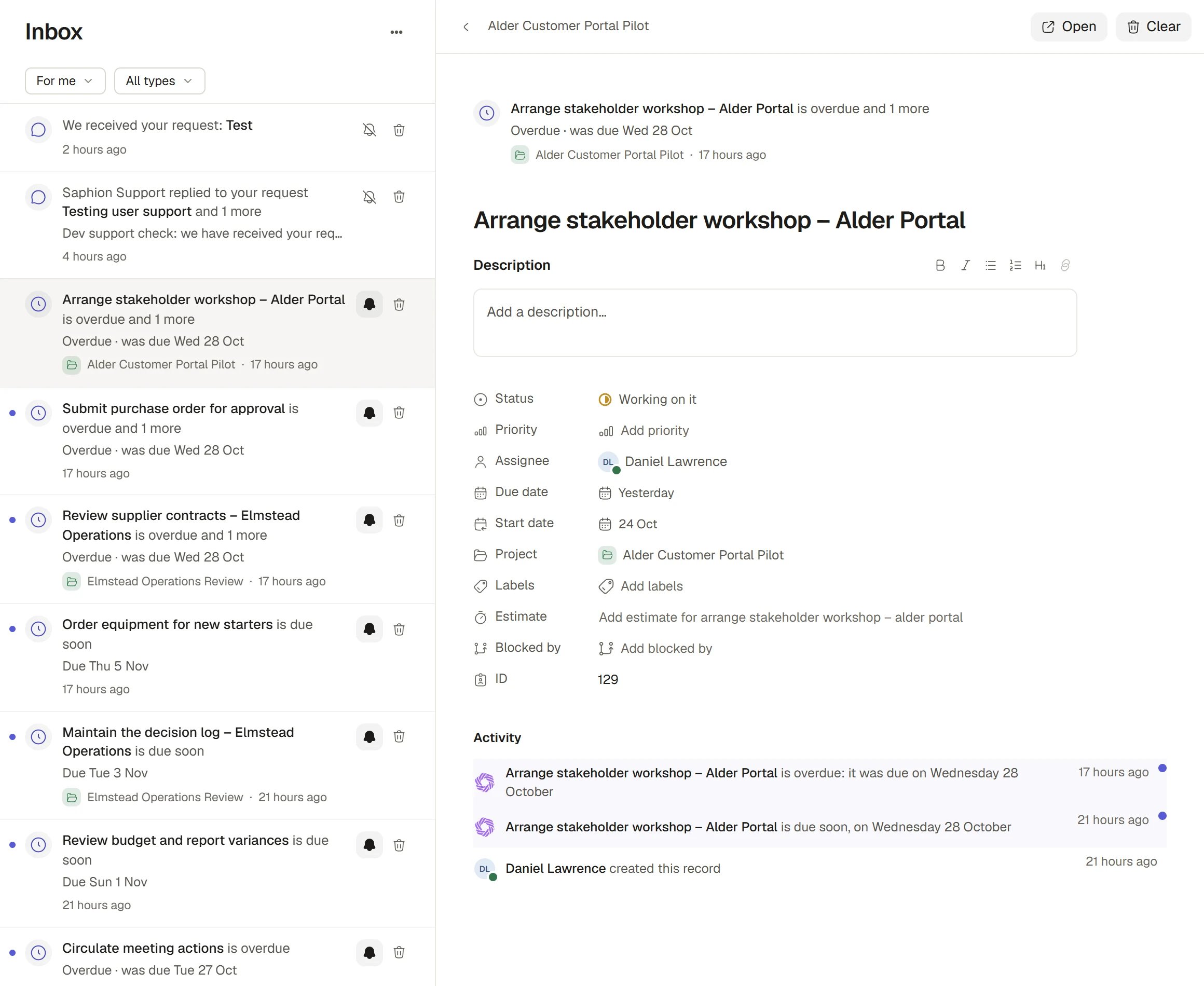
Your Inbox
Read your Inbox
1
Open the Inbox
Choose Inbox near the top of the sidebar. On a phone it is in the bottom bar. A coloured count beside it shows your unread notifications for mentions, assignments and comments. Updates on work you merely follow are not counted.
2
Narrow the list
The first filter chooses who the notification is for: For me, or Following, which is only work you follow. The second filter chooses the type: All types, Mentions, Assignments, Comments or Updates.
3
Select a notification
Select a row to read it in the pane beside the list. Selecting a notification marks it as read. The pane shows the item, why you received it, and a button that takes you to the work: Open, Open item or Open conversation.
4
Clear what you have dealt with
Hover over a row and choose the bin icon to Clear it. A cleared notification leaves your Inbox, and new activity on the same thing brings it back.
Deal with many notifications at once
Choose the ⋯ menu beside the Inbox heading:- Mark all as read marks every unread notification as read. It is greyed when there are none.
- Clear all clears the whole list. The message that appears carries one Undo for the whole batch.
- Manage following opens the list of everything you follow.
Manage what you follow
Following decides which activity becomes a notification for you. Choose Inbox ⋯ > Manage following to see every item you follow in a table.
Search the table, filter it by Why or Type, and open an item by selecting its row. To stop following, open a row’s menu and choose Unfollow, or tick several rows and choose Unfollow in the bar that appears. The message offers Undo. Select Inbox in the trail at the top to come back.
Follow something yourself
Open a record and choose the bell at the top of its record panel. It reads Follow when you are not following and Following when you are. A Project has Follow project in its ⋯ menu.How it works
- Retention is the Organisation’s. Only an Organisation Admin can change how long the Organisation keeps notification history.
Who follows what
- You follow what you create by hand, what you are given as owner or Assignee, and what mentions you.
- A record Beacon or another connected assistant creates for you does not make you follow it. Neither does an import: records you import do not flood you with notifications.
- If you unfollow something, you stop hearing its general updates. Being mentioned in it or being given the work still reaches you, and follows you again.
- A follow that came from being given the work ends when the work is taken from you.
- You never get a notification for a change you made yourself.
Notification types
Choose how notifications reach you
Open Settings > General and find Notifications. The Inbox itself always receives everything and cannot be switched off. Beyond it, each type of event has its own switch for each channel.1
Choose a channel
Use the Notify me by control to pick Pop-up, Email or Desktop. A pop-up appears while Saphion is open. Desktop notifications reach you while you are elsewhere. Email goes to the address you sign in with.
2
Switch events on or off
Under the channel, each event has one switch. Your choice saves the moment you press it.
3
Allow desktop notifications
On Desktop, choose Turn on desktop notifications and allow them in your browser first. Until the browser permission is on, the Desktop switches are greyed. If your browser has blocked Saphion, the row tells you how to unblock it.
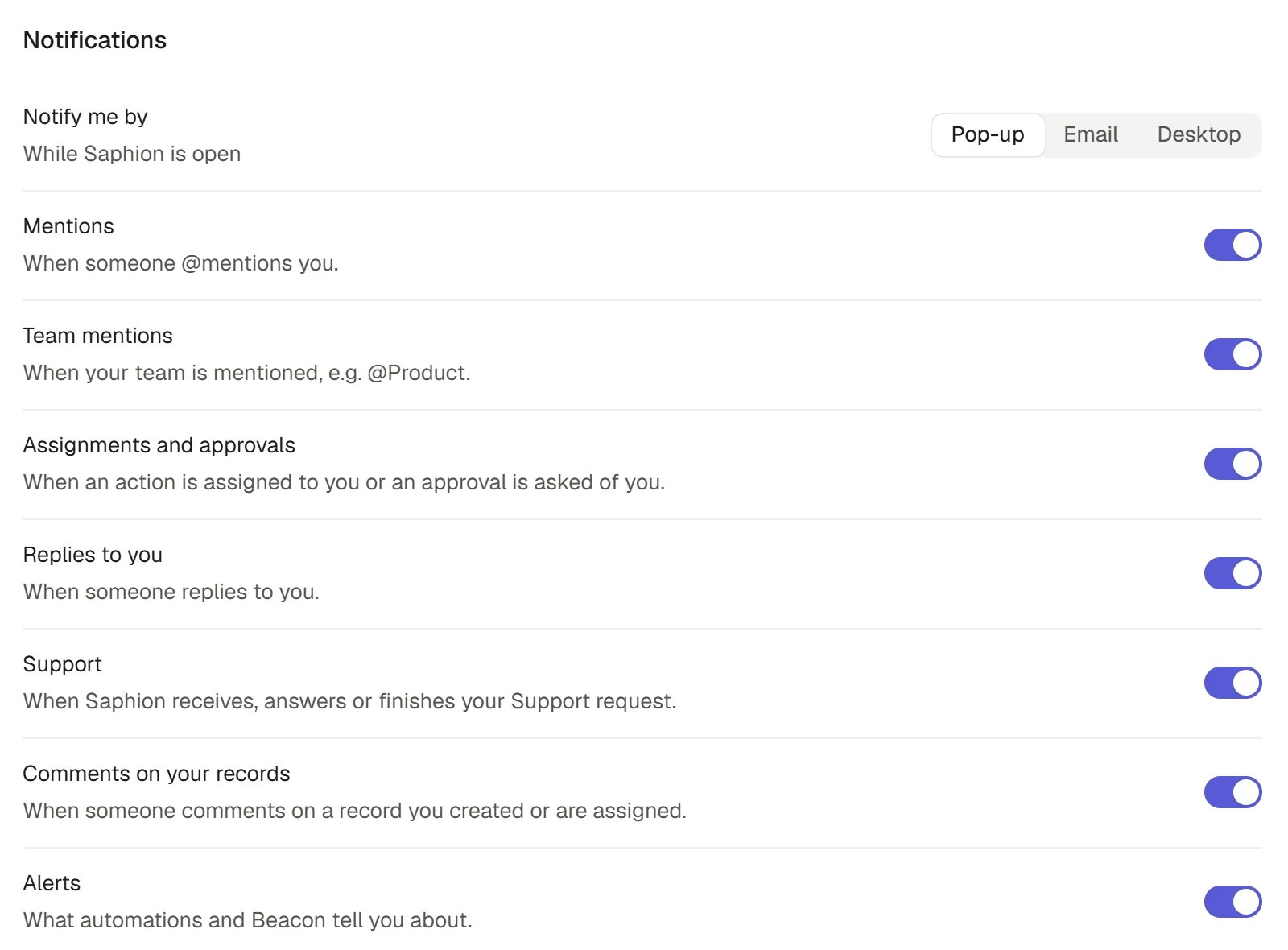
Notification settings
The table shows the settings you start with. Change any of them and your choice is kept.
Turning a notification off needs the Choose their own notifications Permission. Members hold it until an Admin takes it away. Without it, a switch that is on cannot be turned off, and the list says why. Turning one on always works.
Weekly and daily briefings
Under the Email channel, two switches turn on a briefing email:- Weekly briefing: your completed work last week, outstanding Actions and decisions, and deadlines this week. It arrives on Mondays at 08:00 in your Organisation’s time zone. It is on by default.
- Daily briefing: what needs your action, with outstanding work and decisions, Actions due today and deadlines in the next seven days. It arrives each morning at 08:00 in your Organisation’s time zone. It is off by default.
How long notifications are kept
Notification history, in Settings > General, shows how long your Organisation keeps notifications. An Admin can choose 7, 30, 60, 90, 180 or 365 days. Everyone else sees the period with “managed by your organisation”.Other settings in General
The rest of Settings > General is personal and applies only to you.Ask Beacon
- “What did I miss in my Inbox since Friday?”
- “Which Projects am I following?”
FAQ
Why did I not get a notification?
Why did I not get a notification?
You are never notified about your own changes. You also hear nothing about general updates on something you unfollowed, or on work you cannot open. Check Inbox ⋯ > Manage following, then Settings > General > Notifications for the event and channel.
Why do I get an email when I have already seen the notification?
Why do I get an email when I have already seen the notification?
Email goes out only for notifications that are still unread after the delay. A notification you opened or marked as read first is not emailed.
What is the difference between Clear and Mark as read?
What is the difference between Clear and Mark as read?
Mark as read keeps the notification in your Inbox without the unread count. Clear removes it from the list, and new activity brings it back.
Can I stop all email?
Can I stop all email?
Yes. Choose Email under Notify me by and turn off each event and both briefings, as long as you hold the Permission to turn notifications off.
Why does the count on Inbox not include everything?
Why does the count on Inbox not include everything?
The count covers notifications addressed to you: mentions, assignments and comments. Updates on work you merely follow are in the list but not in the count.
Related
- Record panel and attachments: Follow a record, comment on it and see its activity.
- Activity: The feed of everything that changed across work you can open.
- Actions: The assignments and due dates that notify you.
- Teams and Permissions: The Permission that lets a person turn notifications off.