

Anyone who can add records to a board can import into it, and anyone who can open a board can export what they can see.
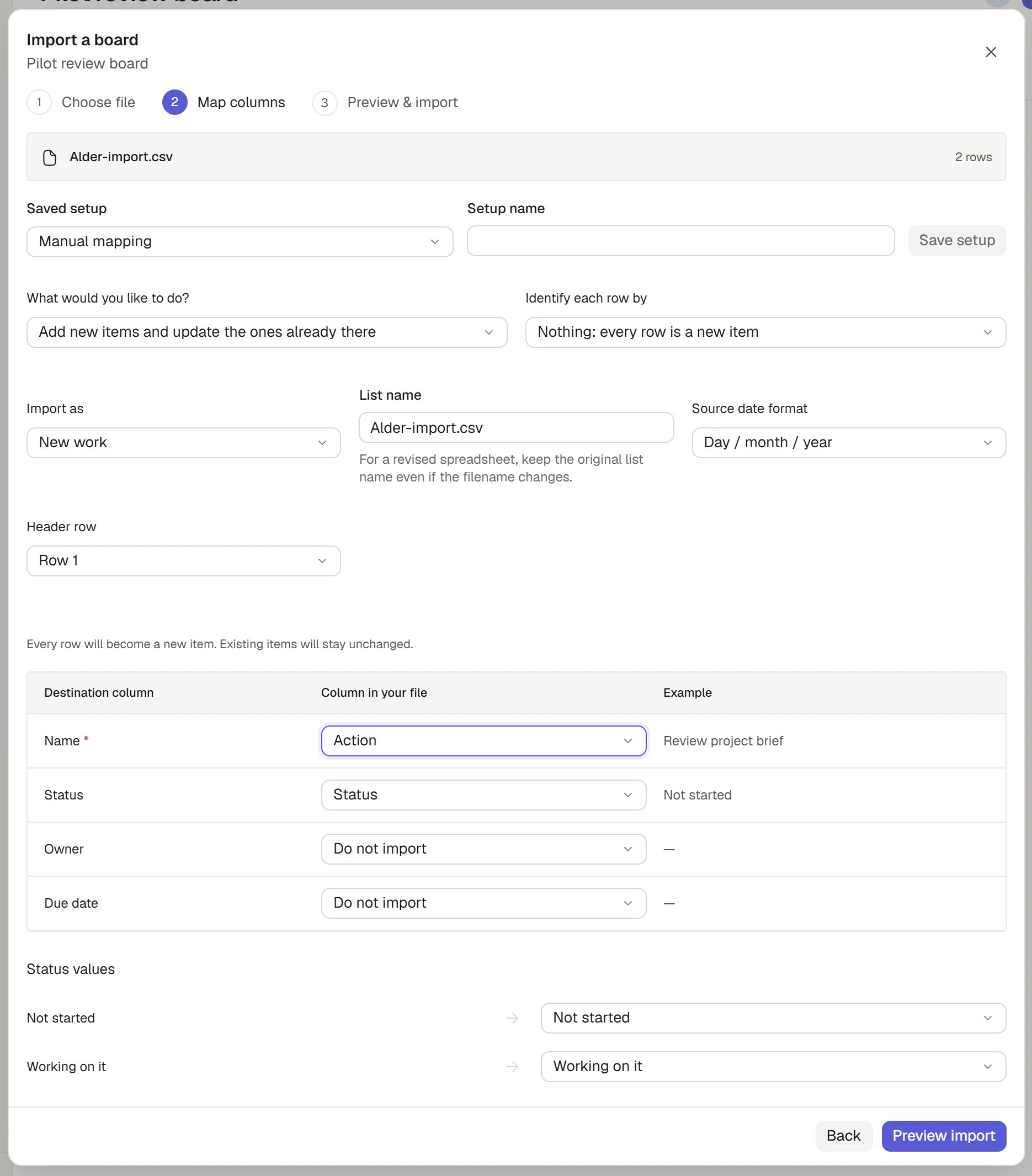
Map columns for an import
Import records from a file
Nothing is written until you choose Import.1
Open the import
On the board you want to fill, open the ⋯ menu in the header (labelled Page options) and choose Import from Excel or CSV. The Import a board dialog opens on Choose file. The Actions board, your Projects and every board that holds records have it.
2
Choose the file
Drop your spreadsheet or choose a file. Saphion accepts Excel (
.xlsx), CSV (UTF-8), a programme file (.pp, .mpp, .mpx, .xml, .xer) and a Saphion board snapshot (.json). The file is uploaded to Saphion and read there. Nothing is imported yet.3
Map the columns
The Map columns step lists each destination column beside the Column in your file that Saphion suggests, with an Example value. Change any match, or choose Do not import. A required field is marked, and you cannot continue until it is mapped.
4
Check the settings
Choose what to do with matching rows, how rows are identified and how dates are read. The settings are below.
5
Preview
Choose Preview import. Saphion checks every row and reports what it would do: Will create, Will update, No change, Skipped, Will archive or Needs attention. Filter the list under Show.
6
Import
Choose Import, for example Import 120 records. The report shows what each row did: Created, Updated, No change, Skipped, Archived or Refused. A refused row says why.
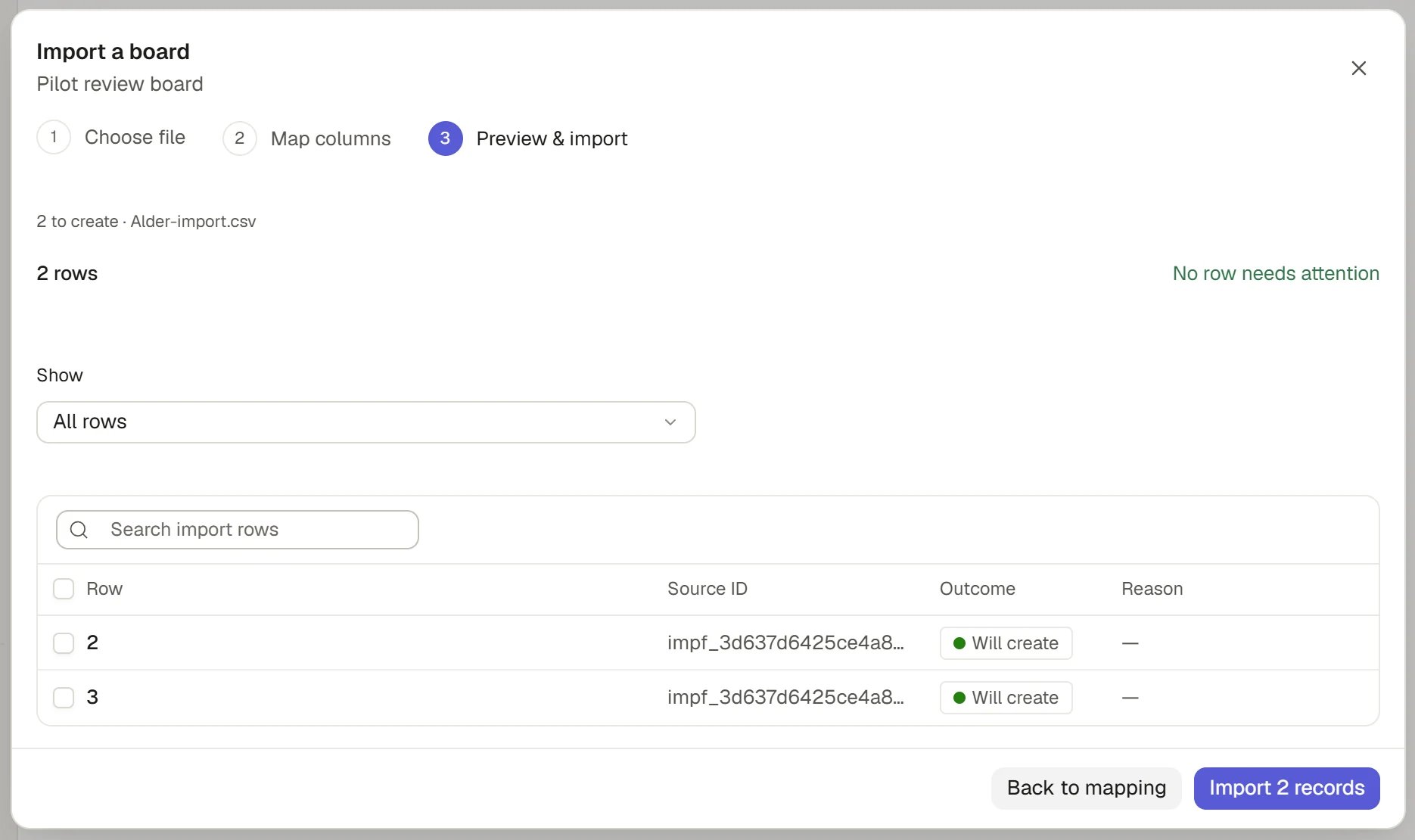
Preview an import
The mapping settings
Blank cells never overwrite what an item holds. If a column holds a choice, such as a status, a values section lists each different value in the file so you can map it to one of your choices, use its name as it is, or choose Do not import this value.
Save a mapping for next time
Above the mapping, Saved setup lets you apply a setup you saved, or choose Manual mapping. Name the current mapping under Setup name and choose Save setup. A setup stores column names, not positions, so it works on any later file with the same headers. If a saved column is missing or appears twice, Saphion tells you and you map it by hand.Fix rows that failed
If some rows need attention, Rows needing attention is selected first. Choose Download the error file to get the failed rows to correct and import again.Limits
- A file can be up to 100 MB.
- One import takes up to 100,000 rows and 512 columns. Split a larger file.
- Saphion keeps the uploaded file for seven days.
- Spreadsheet rows do not carry attachments, permissions or updates from other systems. Those need a separate migration.
Import a programme
A programme goes into a Project’s Programme tab, not into a board. Choose Upload programme there, or Update programme once the Project has one. The wizard is the same. A newer file replaces the lines by their source ID and archives tasks it dropped, whatever the file is called. See Projects.Import rows from a template
Import from template and Add from template, in a board’s ⋯ menu, bring a template’s rows into a board. You tick the rows you want. See Templates.Undo an import
An import you make is one step in your change history. While you are still working in the place you imported into, press Ctrl+Z (Cmd+Z on a Mac) outside a text field to take the whole import back in one go. Saphion refuses the undo if someone has changed those records since, and says so. A large import is undone as a background job. An import also appears in Activity as a single line, such as “imported 120 new Opportunities”, and the records keep their own history.Importing does not make you follow the records, so it does not flood your Inbox with notifications.
Export records
Narrow the board with search and Filter to the records you want first. The export covers the records your filters select.- Straight from the board
- Choose the format and columns
1
Open the menu
Open the ⋯ menu on the board.
2
Choose Export
Choose Export to Excel or Export to CSV. The file downloads at once.
Change the design of exports
Documents and workbooks that Saphion produces have a design, and Organisation Admins can change it. Choose Settings > Administration > Exports.1
Pick an output
The list groups outputs by format: Email, PDF, PDF/Word, Spreadsheet and Other. Each shows whether it uses the built-in design, has a published version, or is controlled elsewhere. Search the list with Search outputs.
2
Edit a draft
For a document, upload a Word master (or Use Saphion default), choose which style of the master writes each heading, paragraph, list, table and caption, and choose between one file per part and one combined file. For a spreadsheet, choose the Excel table style and an optional Sheet tab colour. Choose Save draft.
3
Preview
Choose Preview PDF or Preview workbook. The preview uses a clearly synthetic sample and the same path as real exports.
4
Publish
Choose Publish design. It becomes the current version for every output made from then on.
How it works
- Admins choose more. Organisation Admins also choose whether an import is new work or history, and change the design of exported documents.
- The server judges the file. Saphion reads, maps and judges every row on the server. What the preview says is what the import writes.
- A refused row blocks nothing else. Rows that fail are reported with a reason, and the rest import.
- An import is one operation. It appears once in Activity and can be undone as one step.
- Exports follow your access. They contain records you can open, in the columns you choose.
Ask Beacon
- “Import this spreadsheet of subcontractors into the Contacts board.”
- “Export the open Actions for the Harbour Road Project to Excel.”
FAQ
Can I update existing records from a spreadsheet?
Can I update existing records from a spreadsheet?
Yes. Choose a column that identifies each row under Identify each row by, and set What would you like to do? to update existing items, or to add and update.
Why is my date wrong after import?
Why is my date wrong after import?
The file’s dates may be month first. Change Source date format to Month / day / year and preview again.
Why is Import as not shown?
Why is Import as not shown?
Only Organisation Admins can import a file as history.
Can I export to PDF?
Can I export to PDF?
Boards export to Excel, CSV or a board snapshot. Documents made from a record with a template are Word and PDF. See Templates.
Related
- Boards, tables and views: Filter a board before you export it.
- Fields: Add the fields a spreadsheet’s columns map to.
- Templates: Bring a template’s rows in, and generate documents.
- Activity: See an import as a single line.