

Help and resources
Before you start
Three quick checks solve a large share of problems.- Read the message. Saphion words its messages to say what happened and what to do. Many name the exact setting or person to ask.
- Reload the page. Live updates keep most pages current, but a reload re-reads everything.
- Check where you are. Make sure you are in the right Organisation (the name at the top of the sidebar) and the right place.
I cannot sign in
Full steps are in Sign in. If you cannot sign in at all, email support@saphion.co.uk.
A place, Project or record is missing
Three separate things decide what you see: your Access (Admin or Member), your access to the particular Project or record, and whether you hold a seat in the product. Any one can be the cause.1
Check the sidebar's rules
Actions is offered to Admins and managers. Company Overview is offered to Admins and the people they invite. Contacts needs the Permission to view Contacts or Companies. See Finding your way around.
2
Check for a product seat
A product such as CRM appears in the app switcher only if your Organisation holds it and an Admin has given you a seat.
3
Ask for access
If you open a Project you cannot access, Saphion says so and shows how to ask to be let in. Ask the person who owns it, or an Admin. See Sharing and access.
A record is missing from a list
A record that has gone from a list has not necessarily been deleted.- Check the tab you are on and the active Filter on the board.
- Check whether Show completed or Show archived is switched on.
- Search for it with Ctrl+K. Search shows only what you can open.
- If it was deleted, look in the Bin on the Archive page. Most items rest there for 30 days and can be restored. A Project or a chat is deleted permanently. See Bin and restore.
I am not sure an action went through
Do not repeat it yet. An interrupted screen does not tell you whether the change was made, and repeating an act that sends a message or changes work can do it twice. Open the record, read its details and its Activity, and decide from there. If you did the wrong thing, Ctrl+Z undoes your latest change today, then the one before. If it is still unclear, contact Support.A screen shows an error or will not load
- Choose Try again if the screen offers it. It reads the same thing once more.
- Reload the page. If you have unsaved typing, Saphion asks before you leave.
- If Home looks incomplete, read any error shown on that section, open the place behind it, such as My actions, and reload. A missing figure does not mean you have no work.
- If the error repeats, use Report on the message if it has one, or choose Support & feedback. Saphion sends the page, the record you had open, the release, your browser and recent errors with your request, so you do not have to copy them.
A connector says Reconnect
Your sign-in to that system has lapsed. Open Settings > Your connections, choose the connector and choose Reconnect. Beacon can use a connector only after you finish signing in. See Connectors.Beacon cannot see or do something
Beacon works inside your permissions, so it can read and act only where you could yourself.- If it cannot find a record or file, open it yourself. If you cannot, Beacon cannot either.
- Tools set to Needs approval wait for you, and tools set to Blocked are never used. See Settings > Your connections.
- An Admin can switch off web search under Settings > Connectors.
Settings will not close, or a section is refused
If you typed something that has not been saved, Saphion asks before leaving a section or closing Settings. Save or discard it. If a section is refused (“Only Admins can open …”), ask an Admin.Phone problems
The bottom bar shows only on a narrow screen and only for your Organisation’s work. For everything else, open the sidebar with Open sidebar. See Saphion on your phone.I raised a request and have heard nothing
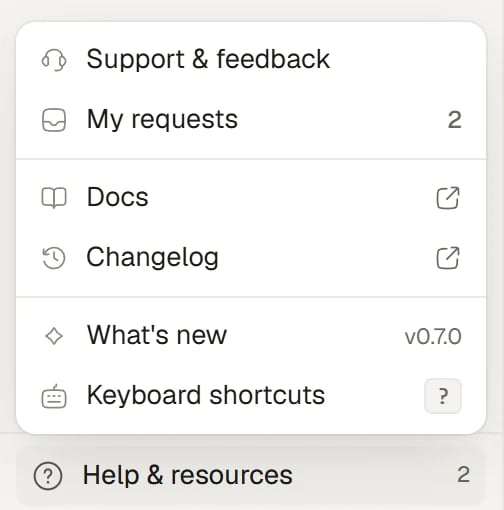
Open Help & resources and choose My requests. A number beside Help & resources means one of your requests has news. Saphion emails you when it is received, when we reply and when we finish it, unless you turned that off in Settings > General. See Contact Support.FAQ
Should I clear my browser data?
Should I clear my browser data?
Not as a first step. Reload the page, then sign out and in again. Use Sign out of all devices in Your account if you suspect another device.
A list says nothing matches, but I know it should.
A list says nothing matches, but I know it should.
A filter or a search word is probably narrowing it. Remove the filter or clear the search box.
Something I changed did not save.
Something I changed did not save.
Look for a message at the bottom right. It says what was refused and why. Fix the cause it names, then make the change again.
Related
- Contact Support: Raise a request and follow it.
- FAQ: Answers to common questions.
- Sign in: Invitations, resets and switching Organisation.
- Sharing and access: Why you can or cannot open something.