

Everyone with access to a board can search, filter, sort and group it for themselves.
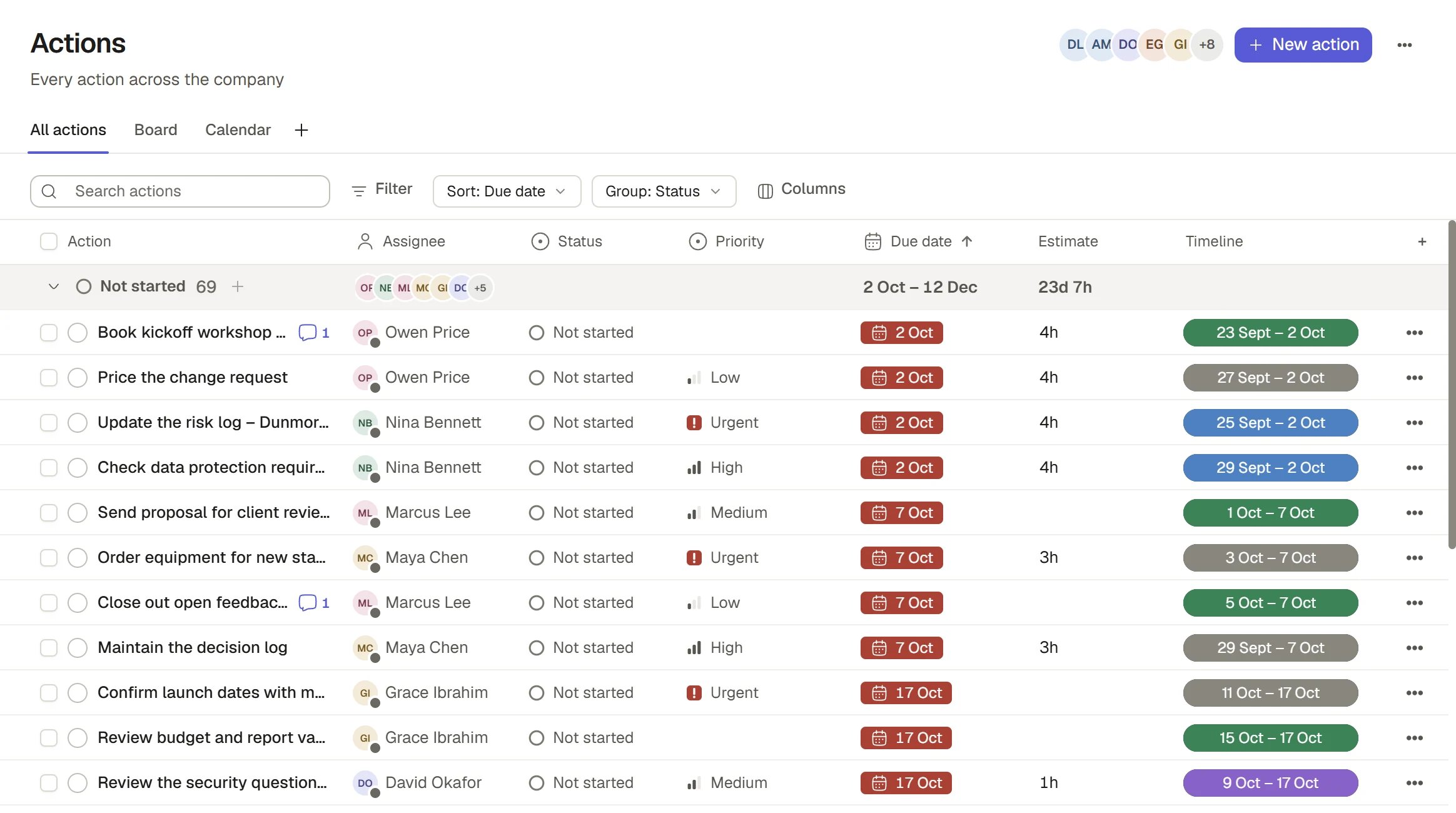
A board in table view
The record holds the work
A record, such as an Action or a Company, holds the details and the history. A board shows a set of records, and a view chooses how they are presented: which records, in what order, grouped how and with which columns. Showing a record in two views does not copy it. Changing a record in one view changes it in every other.Find the records you need
The tools along the top work on every table.1
Filter
Choose Filter, then pick a field under Add filter. Each condition reads Where a field is or is not a value, and you can combine several. The conditions you apply appear as chips under the toolbar. Clear all removes them.
2
Show hidden records
Completed records and archived records are hidden until you ask for them. In the filter menu turn on Show completed and not required or Show archived. A board only offers the switches that make sense for its records.
3
Sort and group
Sort orders the rows. Group offers No grouping, Section (on a board that has sections), or any field, with an optional second level under Then by. Show empty groups, Collapse all and Expand all control the headings.
4
Choose columns
Columns shows or hides a column. A column you hide is hidden only in your view of it. To hide one from a column heading, open its menu and choose Hide column.
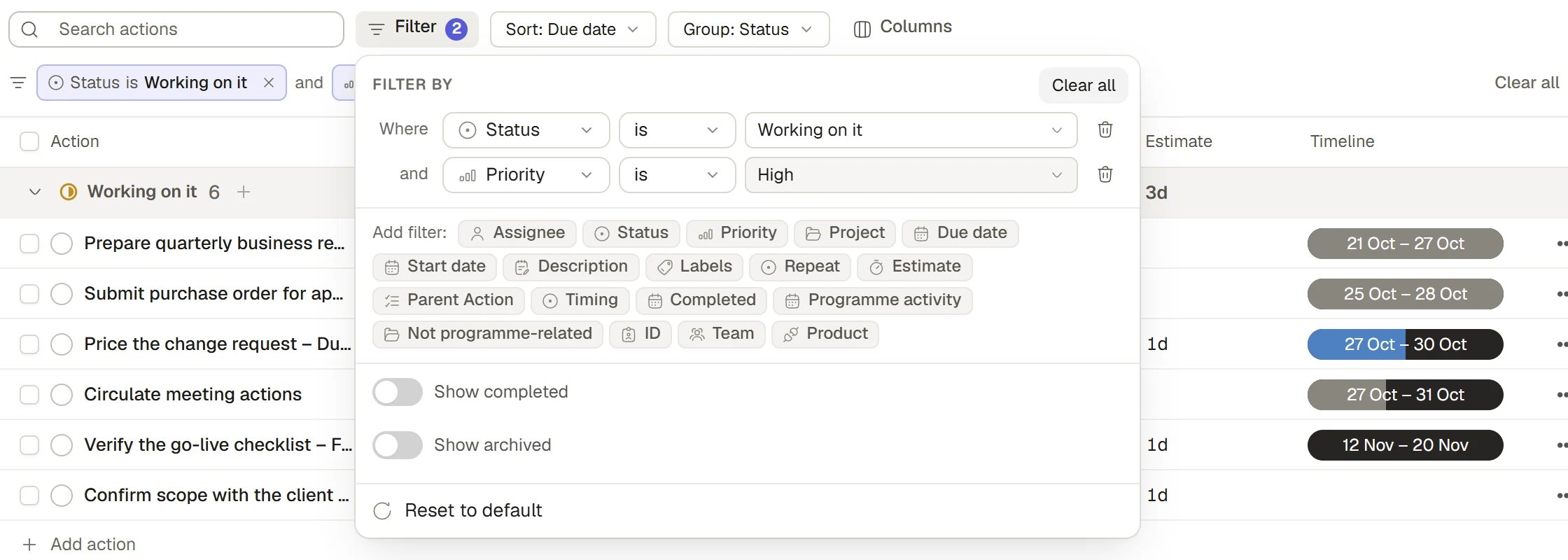
Filtering a board
Work in a table
- Open a record. Select a row to open its record panel.
- Edit in place. Select a cell to change its value. A value you may not change says why when you select it.
- Row menu. Right-click a row for Open, Edit, Copy link, Duplicate, Archive (or Restore, on an archived record) and Delete record. Delete moves the record to the Bin and offers Undo.
- Tick several rows to act on them together from the bar that appears.
- Column menu. Open a column’s menu for Settings, Filter, Group by, Summary, Hide column, Duplicate column, Add column to the right, Change column type, Rename and Delete field. See Fields.
- Summary. A column’s Summary adds a total, count or other figure for the group or the whole board where its type allows one.
Add a view
Views are the tabs along the top of the board. Choose + at the end of the row, and Add view offers the layouts the board’s records can draw.
A view that the board’s records cannot draw yet stays in the menu, greyed, and says why. Some views need you to choose a field, such as the date a Calendar uses. Choose it when the view asks.
Manage a view
Choose the tab you are already on, or right-click any tab, for its menu:- Share the view, Make default view, Rename view, View settings, Duplicate view and Delete view, each only where you may.
- Drag a tab to reorder it, or press Alt with an arrow key.
- When you add a view you choose its Access: only you, or shared with the board’s own audience, where you may share. Sharing a layout never grants access to its records.
Create a board
1
Start from Creations
Choose Creations, then New > Board. A Project’s Creations tab offers the same choice.
2
Set it up
The Create Board dialog asks for a Board name, an Item type (choose New blank board, or a kind of record your Organisation already has) and its Home. Private keeps it yours. Choosing a Project files it there, where the Project’s people can open it.A blank board starts with a Name field only. Under it, the dialog offers Status, Owner and Due date: tick any you want and they are added with the board.
3
Build it
Open the board, add fields from a column’s menu with Add column to the right, and add records with New. See Fields.
If a record is missing
A record that does not show in a view has not been deleted.1
Check the tab
Make sure you are on the view you expect, and the right Project or person if the board is narrowed to one.
2
Check Filter and Search
Clear the search box and look for an applied filter. Turn on Show completed and not required or Show archived if the record may be one of those.
3
Check your access
You only see records you can open. See Sharing and access.
4
Open the record to confirm
Open it from another place, such as a Project’s Actions tab, and check its details.
How it works
- Who can do what. Working in a board’s records, renaming it and changing its shared views need Editor access to the board. Changing how it is built, such as its fields, and archiving or deleting it need Manager access. On a Project’s boards those roles come from the Project’s people.
- A view changes presentation, not access. A view does not make shared records private, and sharing a record does not depend on any view. To change who can open or edit something, use its Share door.
- Removing a view removes only how records were shown. The records stay.
- Roles on a board. A Viewer reads. An Editor works in the records, renames the board and changes its shared views. A Manager changes how the board is built, including its fields, and archives or deletes it.
- Sections. A board with sections shows each section as a group with its count, sorted within each. Choose Group > Section or another grouping to change how it reads. To add, rename, move or remove sections, see Groups and sections.
- Protected boards. Some boards, such as the Actions board’s first view, are Saphion’s own and cannot be changed for everyone. Save a personal or additional shared view instead.
Ask Beacon
- “Add a Status field to the Site visits board and group it by status.”
- “Show me the records on this board with no owner.”
- “Add a section called Snagging to the Site visits board.”
FAQ
Where did my column go?
Where did my column go?
It is probably hidden. Open Columns and turn it back on. A hidden column only affects your own view.
Can two people have different filters on the same view?
Can two people have different filters on the same view?
Yes. Your filter, sort, grouping and columns are personal to you until the view itself is changed by a person who may.
Does deleting a view delete its records?
Does deleting a view delete its records?
No. It only removes that way of looking at them.
Related
- Fields: Add, change and delete the columns of a board.
- Import and export: Bring records in from a spreadsheet, or take them out.
- Templates: Standard rows to bring into a Project.
- Sharing and access: Decide who can open and edit a board.