

Scheduled tasks are in beta.
Admins and Members with a Platform seat. A task is private to the person who made it: not even an Admin can list, open or run it.
Before you start
A scheduled task is Beacon working while you are away, so it follows the same rules as a chat you started:- It works as you, with your own access to records and files.
- It uses your own Beacon allowance, the same one your chats and images use. See Usage and plan.
- It uses the connectors you have connected. See Connectors.
Create a task
Open Beacon, then Scheduled in its sidebar. Choose New task, then one of two ways in.- Set up manually
- Set up with Beacon
1
Choose Set up manually
The New scheduled task dialog opens. You can also start from a template (see Start from a template).
2
Name it and say what Beacon should do
Name is optional on a new task. If you leave it blank, Beacon names the task from your instructions. In Instructions, say what Beacon should do on each run, which sources to use and what a useful result looks like. Instructions can be up to 4,000 characters.
3
Choose a model and effort
The task starts on Saphion’s default model at that model’s usual effort. Change either if the work needs more thought. Higher effort takes longer and uses more of your allowance on every run.
4
Choose when it runs
Under Trigger, choose Once or how often it repeats, and the time. A line under the instructions says the schedule in words and when it next runs, for example “Daily at 09:00 · Next run: Tomorrow 09:00”. See Repeat options.
5
Choose Create task
The new task opens on its own page. A task made from the Scheduled place starts active.
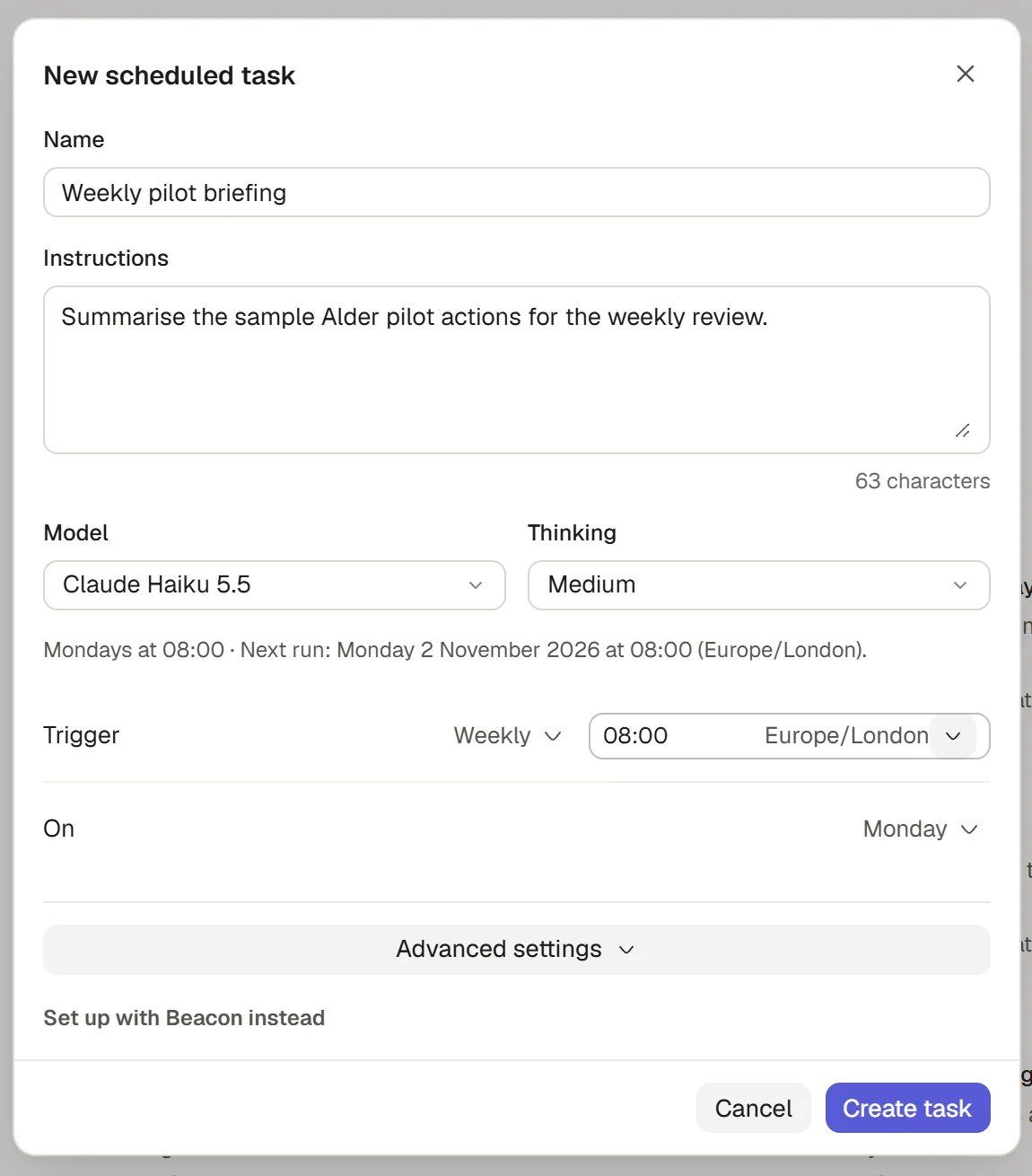
Set up a scheduled task
Start from a template
The Templates chip on the Scheduled place lists 24 starting points, such as News that matters, Prepare my day, Inbox review, Project briefing, Meeting preparation, Deadline watch, Weekly wrap-up and Watch a webpage. Each shows the schedule it would use. Choose one to open the New scheduled task dialog filled in. A template is only a starting point: nothing is created until you choose Create task, and you can edit every part of it. An empty Yours list also offers the first eight templates under “A few things Beacon can take care of”.Repeat options
A task never runs more often than hourly. Under Advanced settings, End repeat sets when a repeating task stops: Never or On date, the last day it may run. A task with an end date completes when the date passes. Beacon can also end a task after a number of runs.
Time zone defaults to your Organisation’s. Change it under Advanced settings to run a task on another city’s clock. Times on the task page are shown on the task’s own clock.
Run a task now
Choose Run now on the task page, or in the task’s menu on the Scheduled list. Beacon starts the run at once and opens the chat it is working in, with your instructions already in it. Run now does not change the schedule.Pause and resume a task
On the task page, the switch beside Run now reads Active or Paused. A paused task keeps its settings and does not run. Turn it back on when you want it to start again. A task that has finished its schedule cannot be switched back on: make a new task to run it again.Read what a task did
Open a task from the Scheduled list. Its page shows the task’s name, when it runs next and, in two columns:- History, newest first: each run with the time it started on the task’s clock, Manual where you started it, and its state. A dot marks a run you have not opened. Select a run to open its chat. If there are more runs than fit, choose Show older runs.
- A summary of Instructions and Repeats, and Keeps up to date where the task keeps a Document or file current. Select any row to change that part.
What a run’s state means
Change a task
Choose Edit from the task’s menu (the name in the page bar), or select a summary row on the task page. The Edit scheduled task dialog opens, with Save changes. Changing the schedule or instructions applies from the next run. A task that has completed cannot be edited, only deleted.Delete a task
Choose Delete from the task’s menu, on the page or on a row of the Scheduled list. Deleting stops the schedule at once and moves the task to the Bin for your plan’s Bin days. The chats its runs made stay as ordinary chats, still private to you. Undo brings the task back straight away. Restoring it from the Bin brings it back paused, so you decide when it runs again. See Bin and restore.Find your tasks
Scheduled lists your tasks under the title Scheduled tasks, with a line such as “3 active · 1 paused · 0 completed”. Search by name or instructions, or filter by status with All statuses. Active tasks come first, soonest next run first, then paused, then completed. A task you made a moment ago stands first until you reopen the place.How it works
Permissions
A task has no permission setting of its own. It uses your connectors the way Beacon does for you, following the level your Admin set for each tool under Settings > Organisation > Connectors: Always allow runs, Needs approval asks, Blocked never runs. Nobody is there to answer while you are away, so when a task reaches something that asks, the run stops as Waiting for you and waits in its chat for your answer. Approve it there and the run carries on. These always ask, whatever your Admin set:- Anything that sends something to other people.
- Removing records. A task never permanently deletes anything on its own.
Notifications
Every run’s notice reaches your inbox. Under Advanced settings > Notifications, As your settings follows your notification settings. Switch it off to choose for this task alone between Phone (while you are away from Saphion), Desktop (while Saphion is open in the background), In Saphion (while you are looking at Saphion) and Email. A task can only narrow your settings: a channel you have off there stays off, and says so. A failed run always follows your notification settings. A run with Nothing new stays quiet. See Inbox and notifications.Tasks that keep something up to date
A task can keep one Document, Dashboard, app or file up to date, and then each run works on it. You see it as Keeps up to date on the task. Start from the item’s own Schedule act (a Document’s More document options menu) or ask Beacon to make the task for that item. The form can only clear the connection, not choose a new one. If you can no longer open the item, the task says “No longer available” and its runs say why they could not start.Tasks in a Project
A task made in a Project’s chat belongs to that Project. Its run chats are filed in the Project, so each run has the Project’s instructions, files and memory. The chats are yours until you share one, and the Project cannot be changed afterwards. See Projects in Beacon.Limits
Ask Beacon
“Every Monday at 8 draft me a briefing on my open Actions and any that are overdue.” Beacon creates the task, says when it will first run and links to it. “Pause my weekly briefing until after my leave.” Beacon pauses the task. Beacon can also create, change, read the history of, run and pause or resume a task. Deleting a task is always your own act. A scheduled run cannot create, change, pause or run other tasks. It tells you what it would set up and leaves the decision to you.FAQ
Why did a task not run?
Why did a task not run?
Check that it is Active and not Paused or Completed. A task whose end date or run count has passed completes and stops. Also check your allowance under Settings > Usage: a run uses it like any chat.
Why does a run say Waiting for you?
Why does a run say Waiting for you?
Beacon reached a step that needs your approval or an answer, and nobody was there. Open the run from History and answer in the chat. Your Admin’s tool levels decide what asks, and a send always does.
Can a colleague see or run my task?
Can a colleague see or run my task?
No. Tasks are private to their owner. Share what a task produces, such as a Document, through Sharing and access.
Can a task use a model my plan does not include?
Can a task use a model my plan does not include?
No. A task is refused at save, and at each run, if its model is not available to you. Beacon never swaps in another.
What happens to a task if I leave the Organisation?
What happens to a task if I leave the Organisation?
A run stops with “The task’s owner no longer has access to run it.” Tasks belong to a person, not to the Organisation.
Why did the next run time change after I edited a task?
Why did the next run time change after I edited a task?
Changing the repeat or the time changes when the next run falls. An interval or custom repeat keeps counting from the day it started, so editing other settings, such as the instructions, does not move its grid.
Related
- Chat with Beacon: The chat each run opens, and how approvals work.
- Connectors: The systems a task can read and act in.
- Inbox and notifications: How a run’s notice reaches you.
- Bin and restore: Bring back a task you deleted.